Adobe has plans for one app, plans for lots of apps and plans for teams, and it’s easy to pay for more than you’ll ever open. This guide helps you work out which Adobe Creative Cloud plan fits what you actually make. Plans and prices change often, so we’ll also show you where to check the current ones before you buy.
In short: if you work in one program, a single-app plan is usually the cheapest fit. If you mostly edit photos, compare the photography plans. A plan with 20+ apps pays off when you switch between several kinds of creative work every week. Every plan detail below was checked on adobe.com on 5 November 2026.
Start with what you make, not with the price list
The plan that fits is the one that covers the work you do every week and not much more. Before you open Adobe’s plans page, write down what you have actually made in the last month or two: photos you edited, videos you cut, logos or social media posts you designed, illustrations, PDFs you filled in or signed. Leave out the work you only hope to do one day, such as an animation project you might start next year, because a plan chosen for that work is paid for every month whether you start it or not.
Then count the apps you open in a normal week. For a lot of people the number is one or two. A wedding photographer might spend most of the week in Lightroom and open Photoshop for retouching. Someone who makes YouTube videos might work almost entirely in Premiere. A designer making logos and social media graphics, the kind of work described in what graphic design is, may use Illustrator and Photoshop and little else.
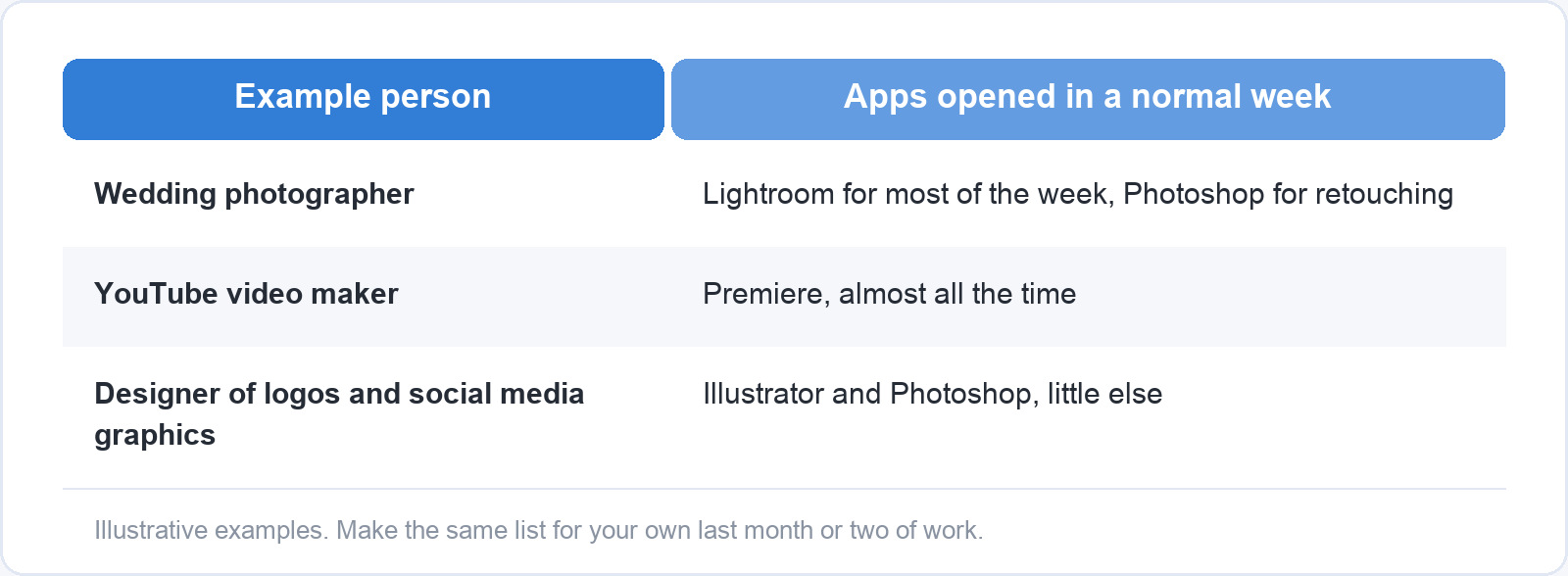
This matters because Adobe builds its plans around bundles of apps. A plan with one app, a plan with two photo apps and a plan with more than twenty apps are priced very differently, so the cheapest plan that covers your weekly list is the right place to start comparing.
The main types of plan and who each one suits
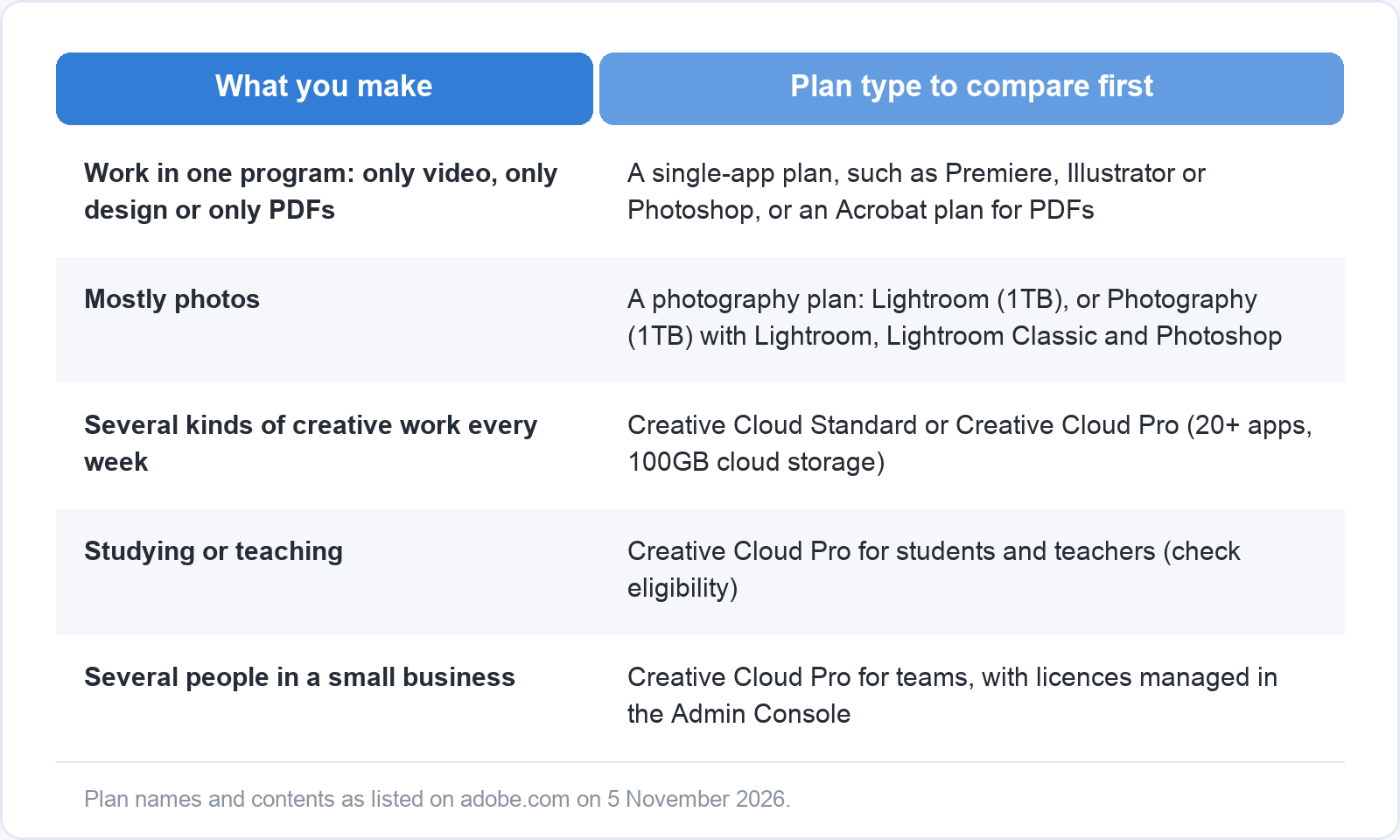
Adobe sells five broad kinds of Creative Cloud plan: single-app plans, photography plans, plans with all or most apps, plans for students and teachers, and plans for businesses and teams. Names and contents change, so read the descriptions below as what adobe.com listed on 5 November 2026.
A plan for a single app suits someone who works mainly in one program, for example only video or only design. Adobe sells Photoshop, Illustrator, Adobe Premiere, After Effects, InDesign, Audition, Animate, Dreamweaver and InCopy as separate plans, and Acrobat has its own plans (Acrobat Standard, Acrobat Pro and Acrobat Studio). If your weekly list says “video” and nothing else, a Premiere plan covers it; if it says “PDFs”, compare the Acrobat plans rather than Creative Cloud as a whole. For animation, our comparison of animation software sets Animate and After Effects against tools from other makers. Adobe’s upgrade page says you can move from a single-app plan to Creative Cloud Pro and keep your files, settings and downloaded apps, so starting with one app does not shut you out of the bigger plan later.
A photography plan suits people who mostly edit and organise photos. Adobe’s photography comparison page listed two on 5 November 2026: Lightroom (1TB), with Lightroom and 1TB of cloud storage, and Photography (1TB), with Lightroom, Photoshop and 1TB of cloud storage. The main plans page adds that the Photography plan also includes Lightroom Classic. Adobe keeps a separate help page about changes to its photography plans, so check which apps the plan includes on the day you buy. If most of your photos come from a phone, the camera settings in our guide to smartphone photography cost nothing and may matter more than any editing plan.
A plan with all or most apps suits people who switch between several kinds of creative work every week, such as a social media manager who edits photos, cuts short videos and lays out a PDF report in the same week. Adobe sells two of these to individuals. Creative Cloud Standard includes the 20+ desktop apps, among them Photoshop, Illustrator, InDesign, Premiere and Acrobat, with limited generative AI features and basic access to most web and mobile apps. Creative Cloud Pro, the plan Adobe used to call All Apps, adds full access to the web and mobile apps, unlimited use of the standard image and vector generation features, and 4,000 credits a month for generating video and audio. Both include 100GB of cloud storage, according to Adobe’s plan comparison. Both also give full access to a few mobile apps, including Acrobat, Adobe Express and Adobe Fresco. If you don’t use generative AI, Standard is the one to compare first. Adobe notes that these plan changes do not apply to individual customers in a few countries, including Germany, Poland and South Korea, so the choice on your own plans page may look different.
Plans for students and teachers give a reduced price on Creative Cloud Pro. Check on adobe.com what the reduction is at the moment and what proof you need, because the offer changes: on 5 November 2026 the student page showed a limited first-year offer ending on 13 November. According to Adobe’s FAQ on that page, the membership runs for one year at the first-year price, needs a one-year commitment whether you pay monthly or up front, and then renews at Adobe’s standard student and teacher rate, which is still below the regular price. Adobe checks eligibility through a school-issued email address. If that can’t be verified, it may ask for proof after purchase, such as a school ID card, report card, transcript or tuition bill showing your name, the school’s name and a current date. Creative Cloud Standard is not available at the student and teacher price.
Plans for businesses and teams suit small businesses where several people need the apps and work together. Creative Cloud Pro for teams is priced per licence, and the licences are managed in one place, Adobe’s Admin Console, where an administrator can assign them and take back files when someone leaves the organisation. The teams page also lists version history that lets you restore earlier versions of files for up to 180 days. If you work alone, compare the individual plans; the teams plans start to make sense when a second or third person needs the same apps.
Questions to ask yourself before you buy
Five questions settle most of the choice, and you can answer all of them before you visit adobe.com.
Which apps will I really use every week, and which ones only sound nice? Go back to the list from the first section. An app you opened once last month is not a reason to buy a bigger plan. If what you make is a few social media posts a month, a free tool such as Canva may cover it without any Adobe plan at all.
Do I need this for a short project or for the long term? Adobe’s plans page lists most plans as annual subscriptions. For a three-month project, a yearly commitment can cost more than you expect if you stop early (the next section explains why), so check whether a month-to-month option is offered for your plan in your country.
Am I paying for this myself, or through school or work, and does that give me a different option? Students and teachers may qualify for the education price. An employer or school that already has a team or institution licence may be able to give you a seat, so ask before you buy your own.
How much cloud storage do I actually need for my files? Creative Cloud Pro and Standard include 100GB and the photography plans 1TB. Files you keep on your own computer don’t count against it. A photographer who syncs a whole library of raw files to the cloud fills storage much faster than a designer who keeps working files on a laptop and backs them up elsewhere.
What happens if I want to stop: what are the cancellation terms for the way I pay? This one depends on how you pay, which is the subject of the next section.
Monthly, yearly and cancelling: read the small print
The way you pay for an Adobe plan changes the price and how easily you can stop. Adobe’s subscription terms page, written for subscribers in the US (Adobe publishes separate terms for some other countries), describes three ways to pay:
| How you pay | What happens if you cancel |
|---|---|
| Annual plan, paid monthly | After 14 days, a cancellation fee of 50% of the remaining balance. Cancel in the ninth month and you pay half the fee for the three remaining months. |
| Annual plan, prepaid | After 14 days, no refund before the year ends. |
| Month-to-month plan | You can cancel; your account becomes a free Creative Cloud membership. |
Adobe says the yearly plans come with a significant discount, which is why stopping early costs money. Its cancellation page adds that most plans get a full refund if you cancel within 14 days of the first purchase, that access to paid apps continues until the end of the current billing period, and that each plan has to be cancelled separately if you have more than one. If you bought through Apple, Google or Microsoft, you cancel through that store, not through Adobe.
For a month-to-month plan, Adobe’s terms page says that after you cancel you can still reach your Creative Cloud files on your computer and on the Creative Cloud website, within a free membership’s 5GB of cloud storage, and if you are over 5GB you have 30 days to move files out of cloud storage.
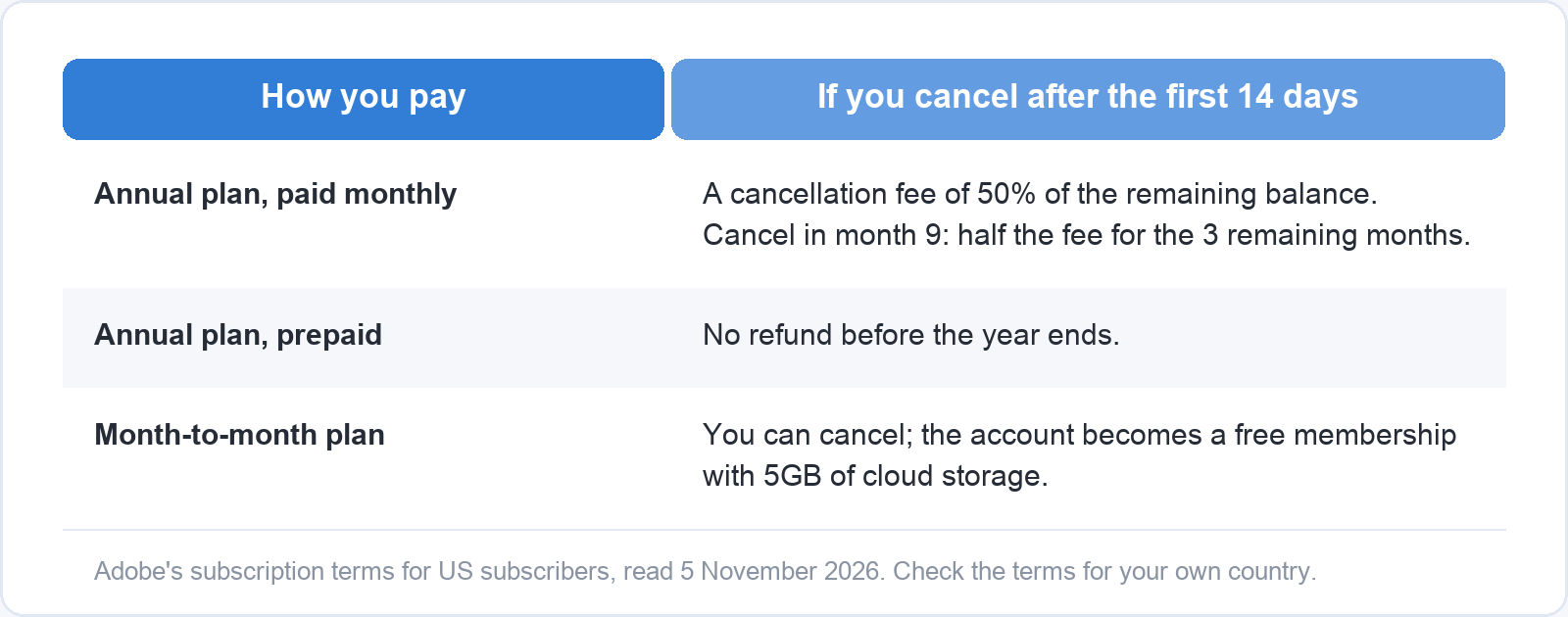
Read the cancellation terms on adobe.com for your own country before you choose, because they can differ between payment options and between countries. Adobe’s own help page warns that the terms above apply to the US.
Where to check current prices
The only reliable place to check Adobe’s prices is adobe.com itself, on the day you buy. Plans and prices change often, and offers come and go: on 5 November 2026 the plans page carried a limited first-year discount on Creative Cloud Pro that ended eight days later.
Open the plans page and compare three things side by side for each plan you are considering: the price on the plan page, what’s included (the apps, the cloud storage and any generative credits), and the payment terms (annual paid monthly, annual prepaid or month-to-month). A price is only comparable with another price when the payment terms match.
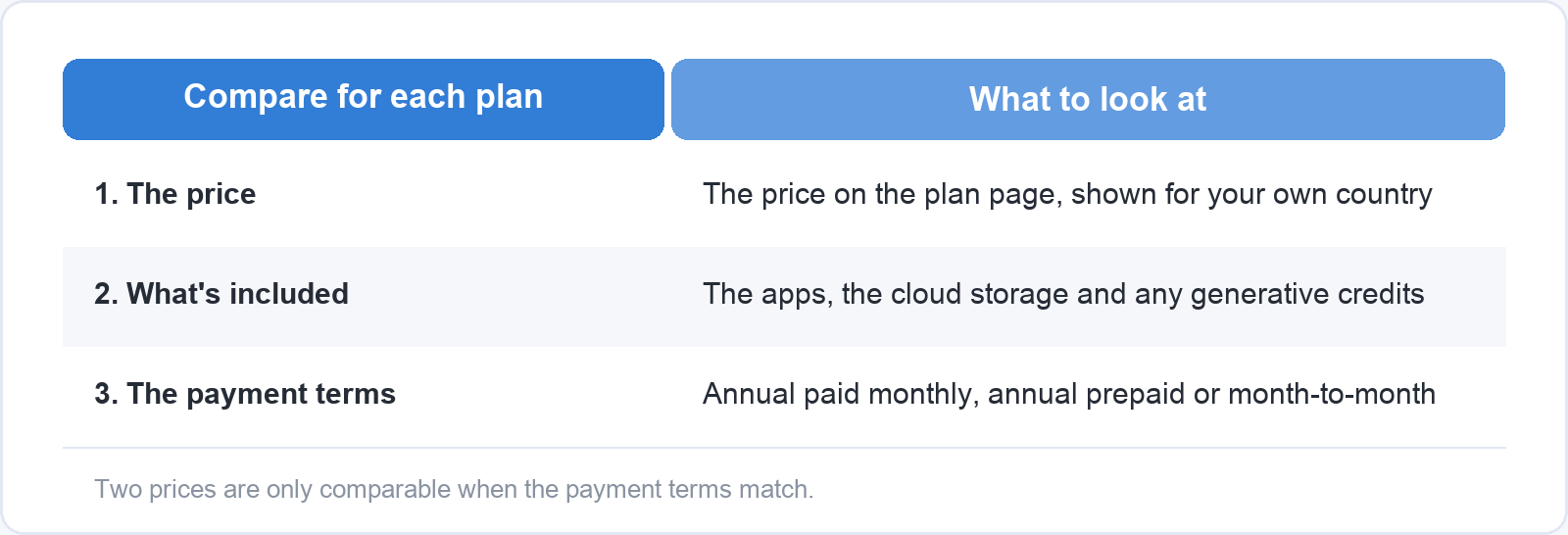
Prices also differ by country, so check the price shown for your own region. On 5 November 2026, Adobe’s help page gave the US price of Creative Cloud Pro as US$69.99 a month on an annual contract billed monthly, before tax. On the same day, the plans page as shown to a visitor in Vietnam listed Creative Cloud Pro at a regular US$33.99 a month including VAT, also on an annual subscription. The plan and the currency were the same and the price was about half, which is why a figure from an article, a forum or a friend in another country tells you little about what you will pay.
Every figure in this article is a snapshot from 5 November 2026, taken from Adobe’s own pages, and will drift. Use it to understand how the plans differ, and use adobe.com for the price.
A simple way to decide
Start with what you make, then list the apps you open every week, then choose the cheapest plan that covers them. Work that lives in one app points to a single-app plan. Lightroom, with or without Photoshop, points to a photography plan. Three or more apps across photos, video and design every week point to Creative Cloud Standard or Pro. If you are a student or teacher, check the education price first, and if several people in a business need the apps, compare the teams plans.
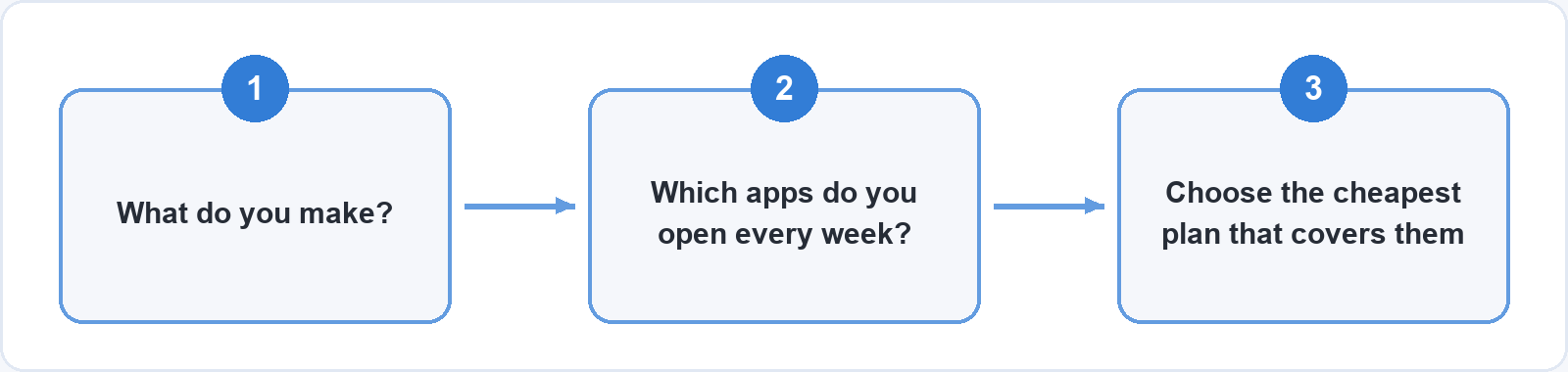
If you’re unsure, start small. Moving to a bigger plan later is usually easier than paying for apps you never open: Adobe’s help pages say you can upgrade from a single-app plan to Creative Cloud Pro and keep your files and settings, and that changing a Creative Cloud plan to another paid plan carries no cancellation fee. Check the upgrade options on adobe.com for your own plan before you rely on that.
Whichever plan you choose, it only pays for itself once you are comfortable in the apps. Soofos has free courses on subjects including Photoshop and photography, so you can build your skills in the programs you have chosen without paying for anything beyond the plan.