
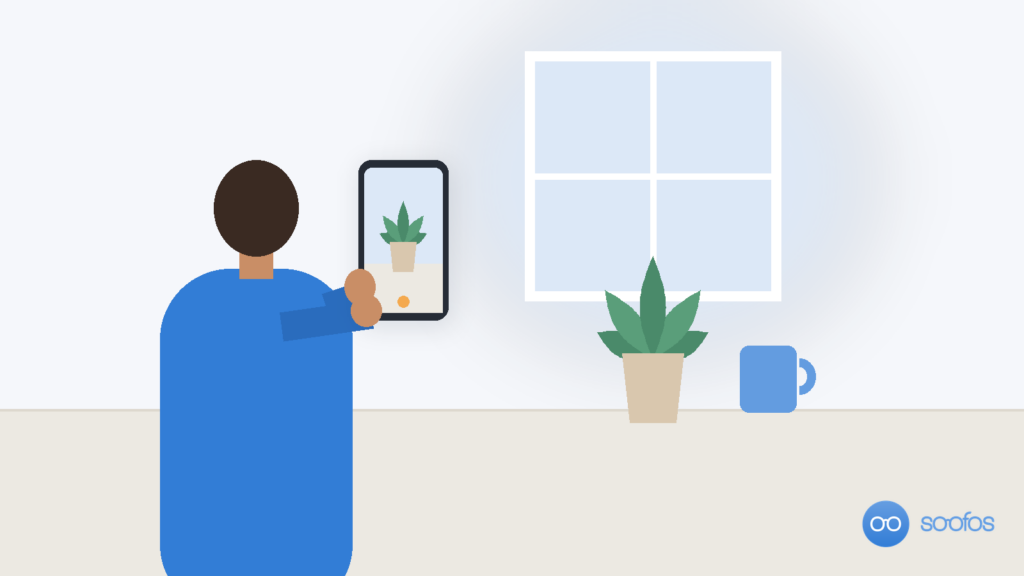
Every time you press the shutter, your phone has already made three decisions for you: where the edges of the picture fall, how bright it should be, and, through the distance you happen to be standing at, what shape your subject’s face takes. Three settings let you make those decisions yourself: a grid and level on the screen, exposure you set and lock with your finger, and a longer zoom button tapped after you take a step back. This guide gives the exact path to each one on an iPhone, a Google Pixel and a Samsung Galaxy, and explains what each one changes in the picture.
Most lists of smartphone photography tips name the grid and “tap to focus” and move on. The useful part is knowing why the phone gets a scene wrong, because that tells you which way to correct it.
Which camera settings make the biggest difference to phone photos?
The three settings worth changing first are the grid (with the level, where your phone has one), manual exposure with exposure lock, and the zoom buttons that switch to a longer view. The grid fixes crooked horizons and centred-by-default framing. Exposure control fixes pictures where the sky turns white or a face turns dark. The zoom buttons, used together with a step back, fix the widened noses of close-up portraits and selfies.
None of them needs an extra app or a paid upgrade. They live in the camera app or the Settings app of the phone you already have, and once the grid is on it stays on.
Setting 1: how do you turn on the grid and level?
The standard grid splits the screen into three columns and three rows, and it appears only on the screen, not in the saved photo. Turning it on takes a few taps:
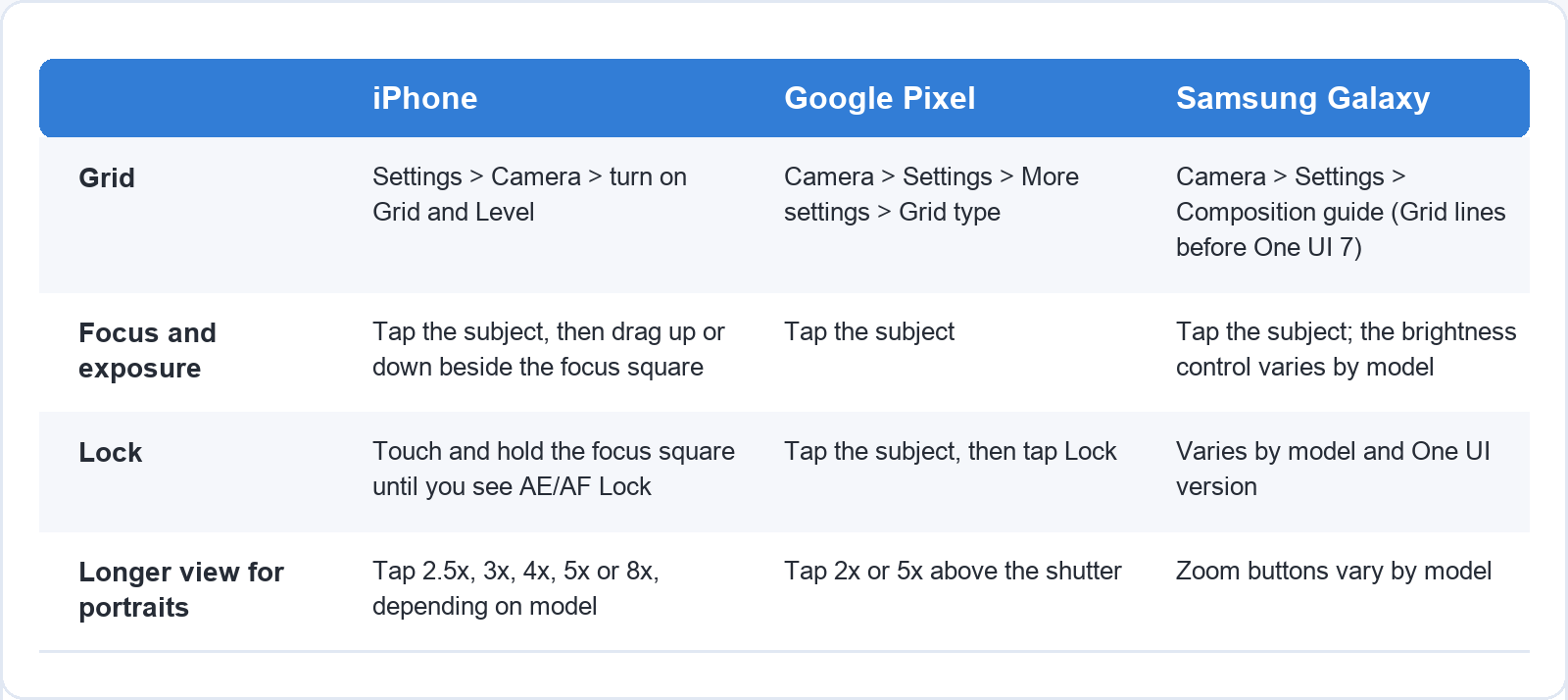
- iPhone: open the Settings app, tap Camera, then turn on Grid and Level.
- Google Pixel: in the Camera app, tap Settings at the bottom left, then More settings, then Grid type, and choose the grid you want.
- Samsung Galaxy: in the Camera app, open Settings and turn on Composition guide. On phones running a One UI version before 7, the same option is called Grid lines.
Samsung notes on its own support page that available settings vary by software version and phone model, so if the name on your phone is slightly different, look for it in the same menu.
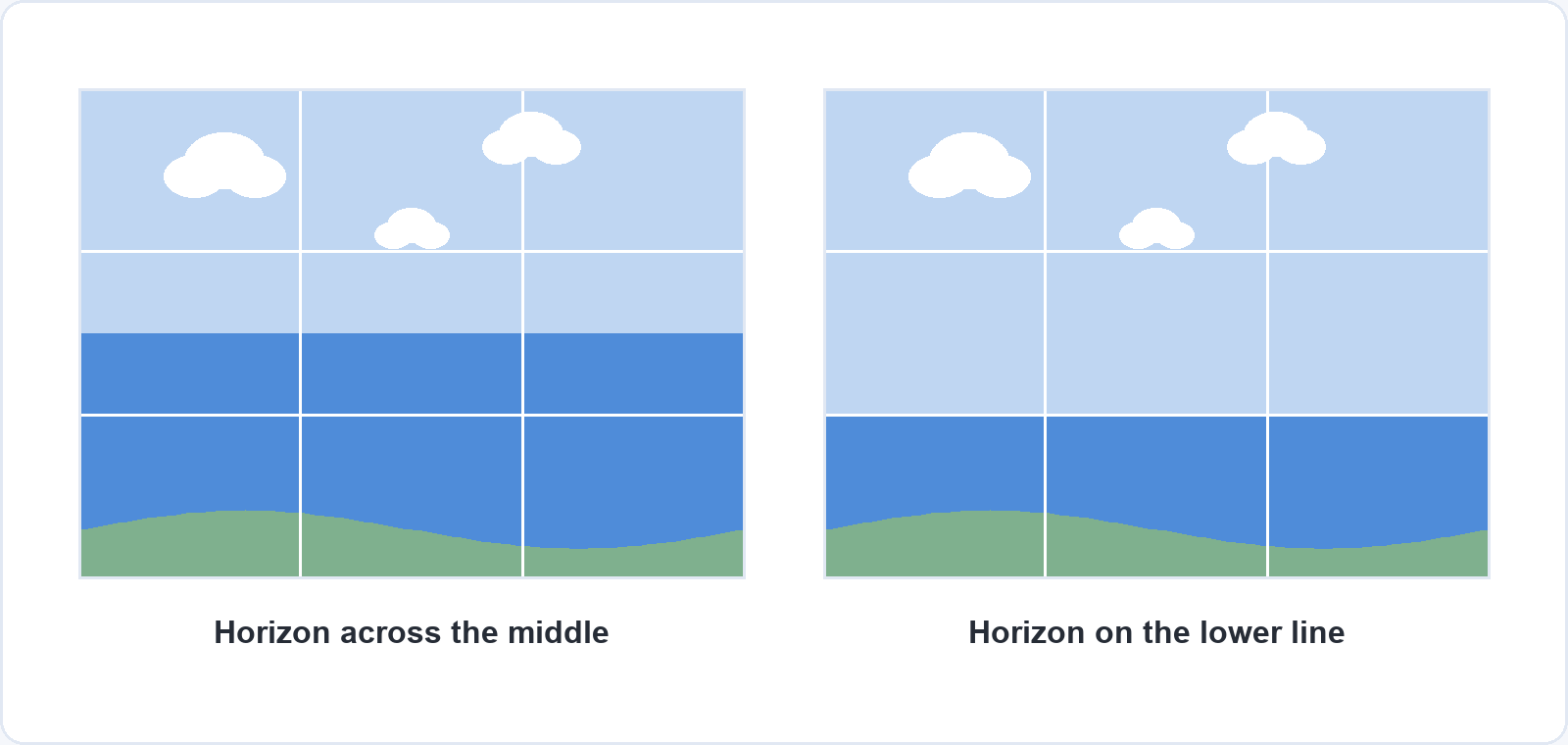
The grid does two jobs. The first is straightening: line the horizon, the edge of a table or the top of a wall up with one of the horizontal lines, and a picture that would have tilted by a few degrees comes out level. The level, where your phone has one, shows when the phone itself is held straight. The second job is placement. With the grid on, it becomes obvious when everything sits dead centre, and easy to move the horizon to the lower line for a big sky or the upper line for a beach, or to put a person on one of the vertical lines with space in front of them in the direction they are looking.
If a photo still comes out slightly crooked, your phone’s photo editor can straighten it afterwards (on an iPhone, the Photos app has tools to align a shot and adjust its horizontal and vertical perspective), at the cost of cropping a little off the edges.
Setting 2: how do you set the exposure yourself?
Tap the part of the picture that matters, then drag to make the whole image brighter or darker, and hold your finger down if you want that setting to stay. Android camera apps offer much the same controls, with differences between makers covered below.
Apple describes what happens before you touch anything: the iPhone camera “automatically sets the focus and exposure, and face detection balances the exposure across many faces.” In an evenly lit scene that works well. It goes wrong when a scene holds two very different brightness levels and the phone has to choose between them, such as a person standing in front of a bright window, a white building against a dark street or a sunset sky above a dark foreground. Your phone’s HDR helps here: on an iPhone it takes several photos at different exposures and blends them to keep more detail in the highlights and shadows. It still chooses the balance by itself, with no way of knowing whether you care more about the sky or about the person standing in front of it.
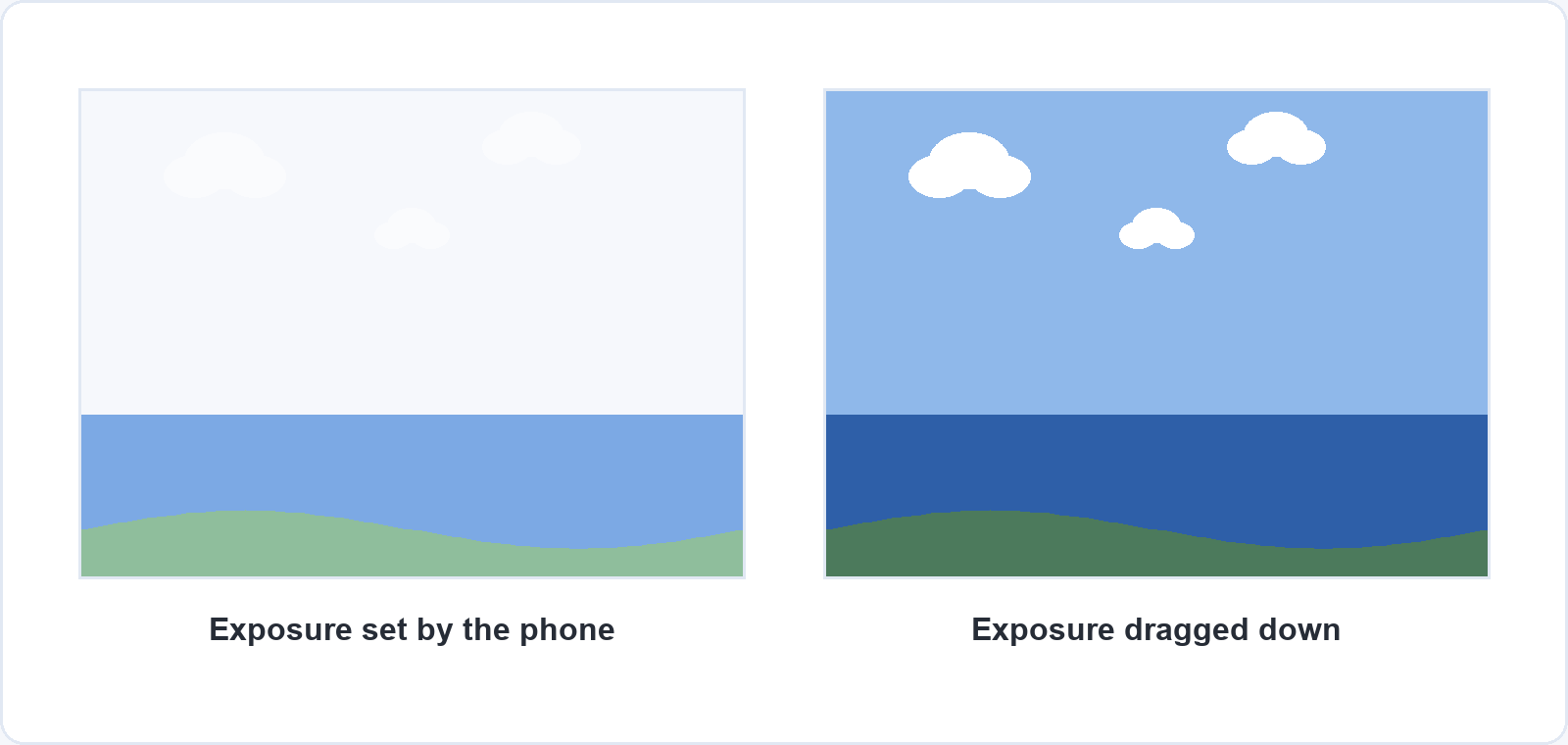
On an iPhone: open Camera and tap the screen where you want to focus. Next to the focus square, drag up to brighten or down to darken. To keep that focus and exposure for the next few shots, touch and hold the focus area until you see AE/AF Lock; tap the screen to release it. There is also an Exposure control in the camera’s tools menu (tap the tools button or swipe up from the camera modes) that locks the exposure level until the next time you open Camera, and Settings > Camera > Preserve Settings > Exposure Adjustment keeps it between sessions.
On a Google Pixel: tap your subject and a white circle appears that follows it around the screen. To lock focus and exposure on a subject that moves, tap Lock.
On other Android phones: many camera apps show a brightness control after you tap, often a small sun icon or a slider beside the focus point. The exact gesture differs between makers and between versions of the same camera app, so if nothing appears after a tap, try touching and holding, or check your phone maker’s help pages.
Which way to drag depends on what the bright part of the picture is. When it matters, as with a sky, a white dress, a lit face beside a window or a plate of food on a sunny table, drag down until it shows detail again. An area that has gone pure white holds nothing an editor can bring back, while a shadow that is a little too dark can usually be lifted later. When the bright part does not matter, such as a window behind a friend at a dinner table, tap the friend’s face and accept a white window.
Setting 3: which zoom should you use for portraits and selfies?
For a picture of a person, step back and tap a longer zoom button, such as 2x, 2.5x or 3x, rather than standing close at 1x. The standard camera on a phone has a wide view, so filling the frame with a face at 1x means standing close, and a close camera exaggerates whatever is nearest to it, which on a face is the nose.
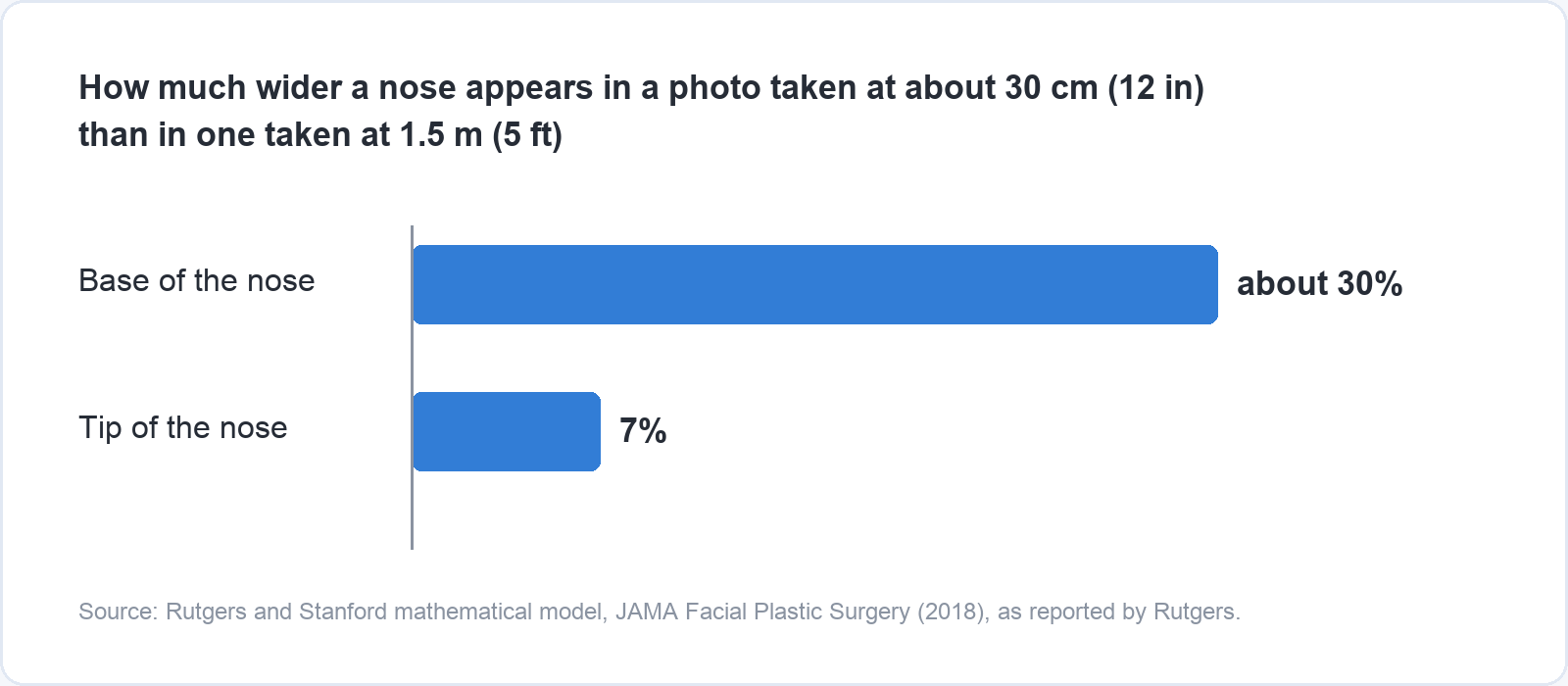
Researchers at Rutgers New Jersey Medical School and Stanford University put a number on it in 2018. Their mathematical model, published in JAMA Facial Plastic Surgery, found that a typical selfie taken about 12 inches (30 cm) from the face makes the base of the nose appear about 30 percent wider, and the tip about 7 percent wider, than a photo taken from 5 feet (about 1.5 m), which the researchers describe as a standard portrait distance. It is a model built on average head and facial measurements from a racially and ethnically diverse group of people, not a set of measured photographs, so read the percentages as the size of the effect rather than a prediction for your own face.
The zoom buttons along the bottom of the frame are the quickest way to get that distance without losing the framing. On an iPhone, depending on the model, you will see some of 0.5x, 1x, 2.5x, 3x, 4x, 5x or 8x; tap one rather than pinching. On a Pixel, tap the 2x or 5x button above the shutter. Some Pixels (the 6 Pro, 7 Pro, 8 Pro, Pixel Fold, and Pixel 9 and later) can also switch to manual lens selection: tap Settings, open the Pro tab and set Lens selection to Manual, and the zoom control is replaced with one button for each lens: Ultrawide, Wide and Tele.
Two things follow for selfies. The 30 cm in that model is the researchers’ figure for an average selfie, so a phone at arm’s length is exactly the case it describes; a phone propped on a shelf a couple of metres away with the timer running (3, 5 or 10 seconds on an iPhone) gives a more proportional face than the outstretched arm. And Portrait mode does not fix the distance problem: it adds a blurred background, but the face is the shape the distance made it. On supported iPhones, the Lens Correction setting under Settings > Camera is on by default and adjusts photos from the front and ultra-wide cameras for more natural-looking results; leave it on.
The 0.5x ultra-wide view has the opposite use. It is good for rooms, buildings and landscapes where you want to fit more in and nobody’s face is near the edge of the frame.
What can camera settings not fix?
Settings decide how bright the picture is and what is in it. They cannot change where the light comes from or how soft it is. A face lit from the side by a window has shape and shadow; the same face lit from straight above by a ceiling lamp has dark eye sockets. Before you reach for exposure, turn your subject, or yourself, so the light falls across the scene rather than from behind it. A sheet of white paper or a white towel held on the shadow side bounces some of that light back and softens the contrast, which is the same job a reflector does in a studio. The same rule applies to video, which our guide to making an instructional video puts in one line: a window in front of you gives even light, a window behind you turns you into a silhouette.
Two physical habits sit alongside the settings. Wipe the lens before you shoot: a phone lens spends its day in pockets and bags, and Google’s Pixel help lists dirt on the lens as a cause of blur, halos, lines and colour distortion (supported iPhones detect a smudged lens and suggest you clean it). And keep still in low light: Google’s help for Night Sight on a Pixel says the subject and the camera both need to stay completely still while the shot is taken, with the phone on a tripod or a stable surface whenever possible.
Questions about smartphone photography
Does the grid appear in my photos?
No. The grid and level are only drawn on the screen while you frame the shot; the saved photo does not contain them.
Should I turn HDR off?
Usually not. Apple says the iPhone uses HDR automatically when it is most effective, and only some older models (iPhone 11 models, iPhone SE second generation and iPhone 12) let you switch Smart HDR off and control HDR manually. Setting exposure yourself works alongside HDR rather than replacing it.
Should I shoot in RAW?
Only if you plan to edit. A Pixel can save RAW + JPEG files (Google’s help lists the switch in the camera’s Settings), and supported iPhones offer ProRAW under Settings > Camera > Formats. RAW files keep more information for editing and take up much more storage. For photos you share straight from the phone, the three settings above matter more than the file format.
Why are my phone photos blurry?
Three causes to check first are a dirty lens, movement in low light and a focus point on the wrong thing. Wipe the lens, hold the phone with both hands or rest it on something when the light is poor, and tap the subject before you shoot so the phone focuses on it rather than on whatever is nearest.
Is Portrait mode the same as using a longer zoom?
No. Portrait mode applies a depth-of-field effect that blurs the background. The zoom buttons change how much of the scene fits in the frame, which lets you stand further back. For a flattering portrait, use both: step back, tap a longer zoom button, and then switch to Portrait mode if you want the blurred background.
Learn to see the light
Once the grid, exposure and distance are second nature, light is what separates a good phone photo from a snapshot, and it is easier to learn from someone showing you than from a list. In Studio Portrait Lighting: 3 Simple Setups for Stunning Results, professional photographer Roy Ensink walks through a beauty setup with a beauty dish and reflector, a rim light with two softboxes and a one-light setup that uses white and black screens to control contrast, in four lessons and 17 minutes. It is taught in a studio, and the way light, modifiers and distance shape a face carries straight over to a window and a phone. You can watch the first lesson free, without an account.