
Excel is Microsoft’s spreadsheet program: a grid of cells in which each cell holds a number, a piece of text or a formula that calculates from other cells, and every formula updates the moment one of its inputs changes. People use it for budgets, lists, planning and data analysis, and it comes in a free browser version, a Microsoft 365 subscription and a one-off purchase. This guide explains how it works, which version to use, what to learn first, and the two well-documented ways it quietly damages data.
Excel went on sale for the Apple Macintosh on 30 September 1985, and the first Windows version followed in November 1987. The core idea has not changed since, and understanding it makes every other feature easier to learn.
What does Excel actually do?
Excel stores values in a grid and lets you write rules that connect them. Type 12 in one cell, 4.50 in the next and =B2*C2 in a third, and the third cell shows 54. Change the 12 to 20 and it shows 90 straight away, along with every other cell that depends on it.
That chain of dependencies is what separates a spreadsheet from a table in a word processor. A table in a document holds the numbers you typed. A spreadsheet holds the relationships between them, so a household budget, a price list or a project plan keeps adding itself up while you change the inputs.
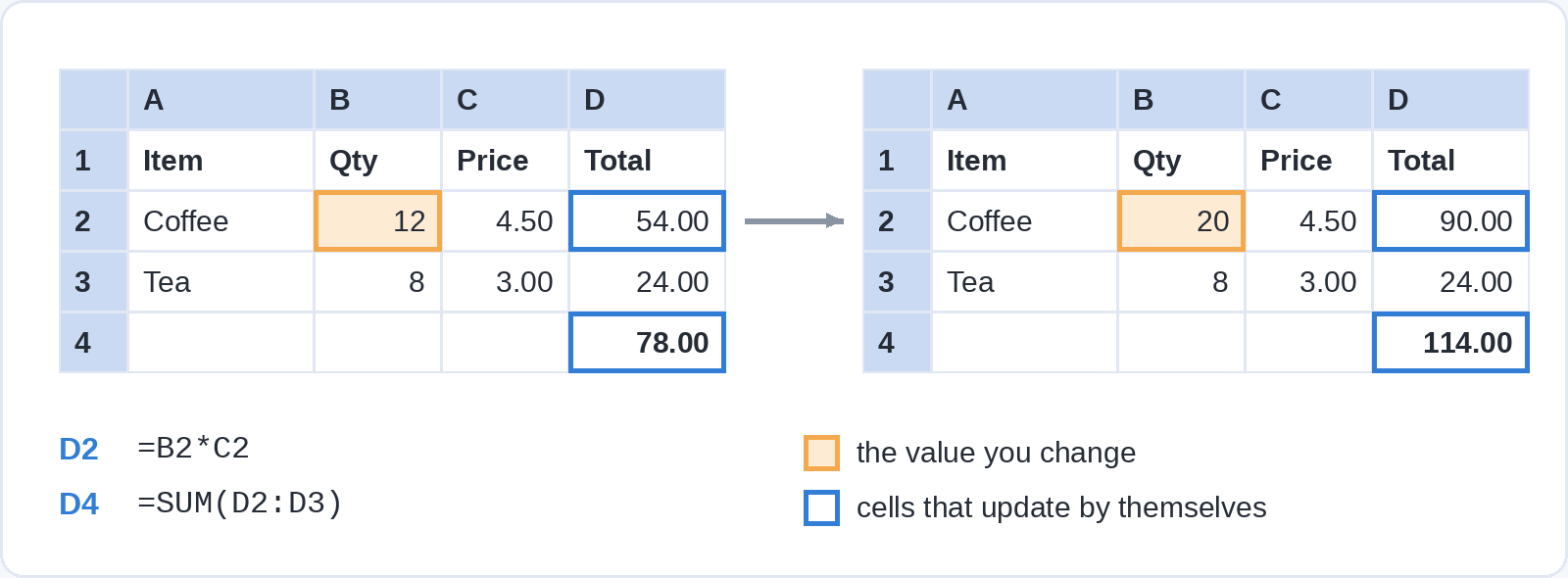
The same mechanism scales. A formula can refer to a whole column, to another sheet or to another file, and a single changed value can flow through hundreds of cells. That is why a finance team can ask “what if the price rises by 3%?” and get an answer in seconds, and also why one wrong reference can spread an error just as quickly.
What are the parts of an Excel file?
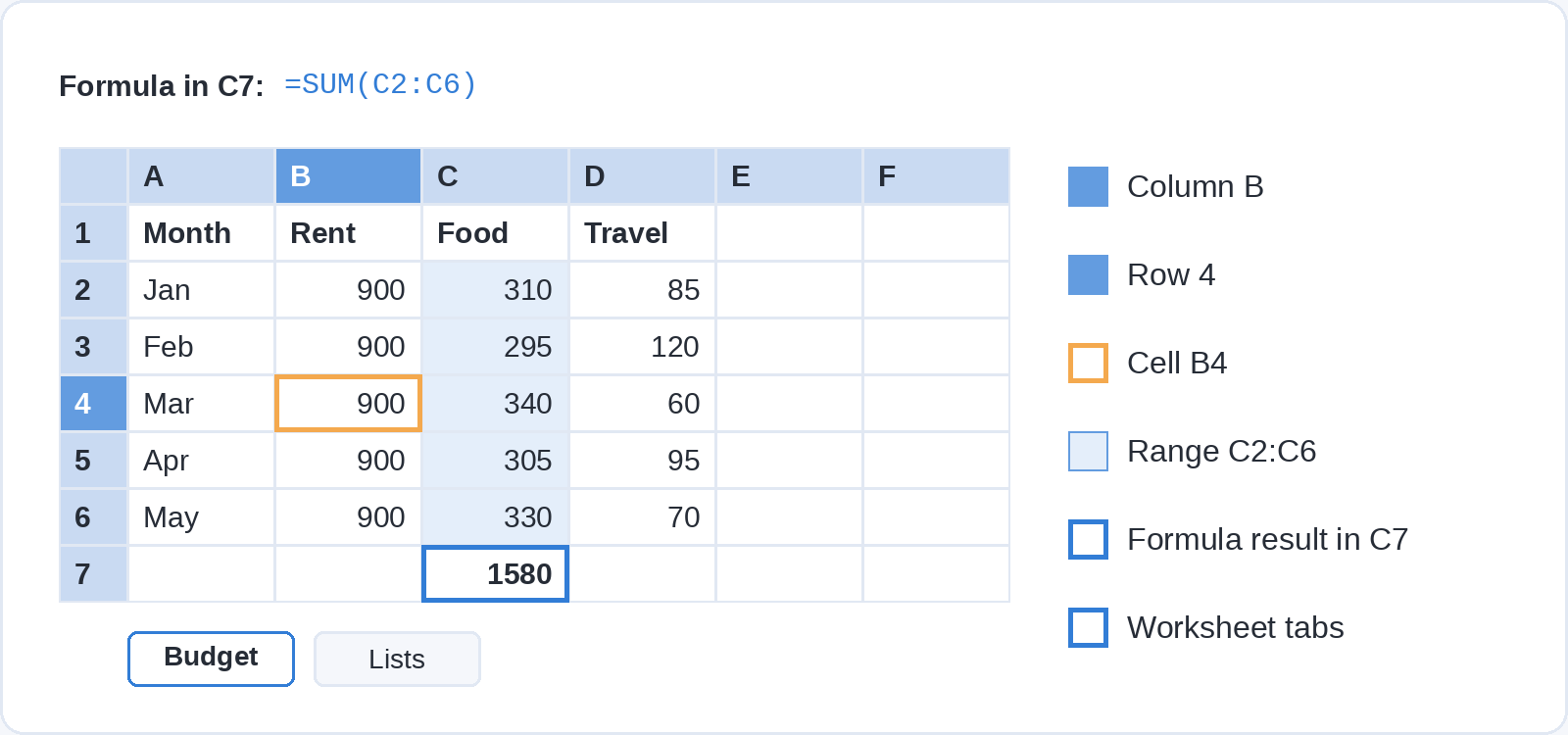
An Excel file is called a workbook, and the modern format carries the extension .xlsx, which became the default with Excel 2007. Inside a workbook are one or more worksheets, the tabs along the bottom of the window.
Each worksheet is a grid of columns labelled with letters and rows labelled with numbers. Where a column and a row cross is a cell, named by its column and row: B4 is the cell in column B, row 4. A block of cells is a range, written with a colon, so B2:B13 means the twelve cells from B2 down to B13.
A formula is anything you type into a cell that starts with an equals sign. A function is a named calculation you can use inside a formula, such as SUM, AVERAGE or IF. So =SUM(B2:B13) is a formula that uses the SUM function to add up a range.
The sheet is bigger than it looks. In Excel for Microsoft 365 and in Excel 2016 through 2024, a single worksheet holds 1,048,576 rows and 16,384 columns, and one cell can contain up to 32,767 characters. The number of sheets in a workbook is limited only by your computer’s memory.
What is Excel used for?
Excel is used wherever numbers or lists need to be kept, sorted and calculated, at work and at home. The most common jobs look like this.
Budgets and money. Monthly spending, a quote for a client, a simple profit and loss sheet. The formulas keep totals and percentages correct as figures change.
Lists that need to stay tidy. Stock, contacts, a reading list, a list of tasks with a status column. Sorting, filtering and drop-down lists stop the same thing being typed five different ways.
Planning. Rotas, event schedules, project timelines. Dates in Excel are numbers underneath, so you can add seven days to a date or count the working days between two of them.
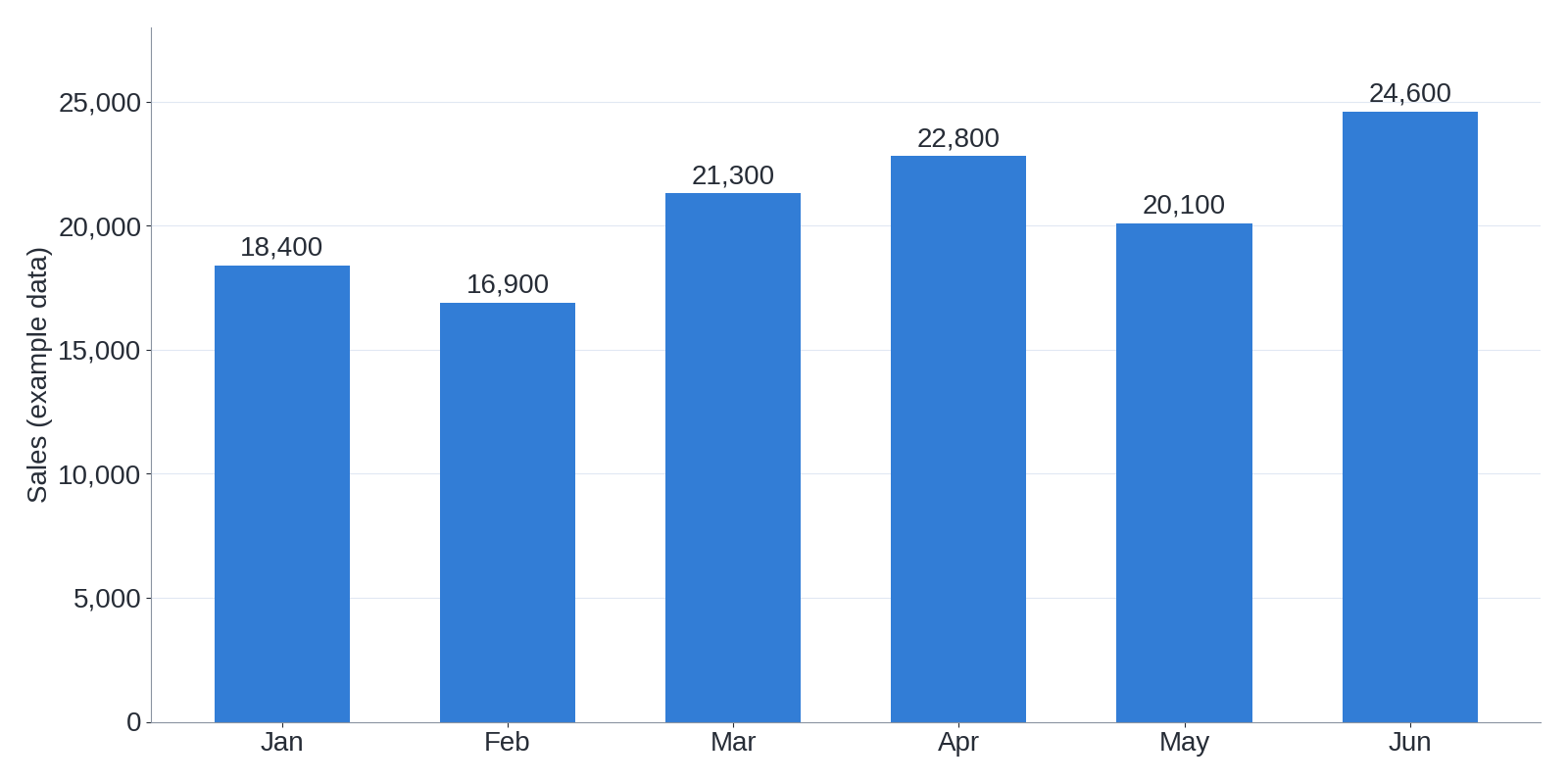
Analysis and charts. Summarising a few thousand sales rows by month or by region with a pivot table, then turning the result into a chart for a meeting.
Where Excel is weaker is shared, long-lived data that many people edit at once, such as a customer database or a stock system for a whole company. It can hold that data, but it does not stop two people saving conflicting versions, and it will not refuse a wrong entry unless you have built the rule yourself. At that point a proper database or dedicated software is usually the better tool.
Which version of Excel should you use?
There are three ways to get Excel, and the right one depends mostly on whether you need the desktop app.
Excel for the web is free with a Microsoft account. It runs in the browser, includes 5 GB of cloud storage on the free plan, lets several people edit the same file at once, and has companion apps for iOS and Android. It covers formulas, tables, charts and most everyday work. It cannot create, run or edit VBA macros: it will open a workbook that contains them, but changing them needs the desktop app.
A Microsoft 365 subscription gives you the full desktop Excel for Windows or Mac, with new features arriving as they are released. Microsoft’s Personal and Family plans now include Copilot, its AI assistant, in the desktop apps, and business plans come with or without it.
Office Home 2024 is a one-time purchase that installs the 2024 desktop versions of Word, Excel, PowerPoint and OneNote on one PC or Mac. It receives security updates rather than new features, and it does not include Copilot or cloud storage.
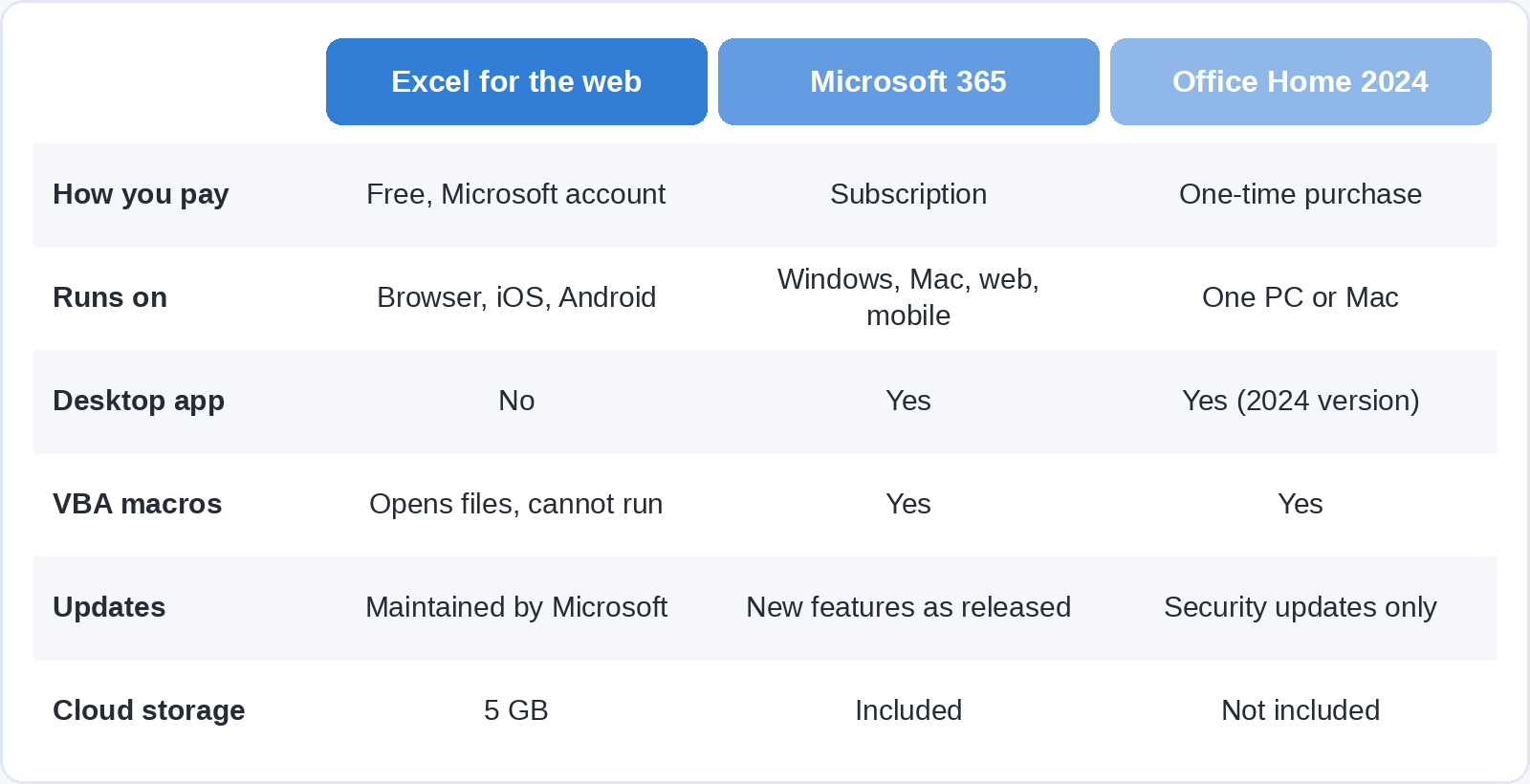
Prices differ by country and change often, so check Microsoft’s own site for yours. If you are starting out, Excel for the web is enough to learn everything in this article. If your employer or course sends you files with macros, or you want features the moment they ship, the subscription is the version that matches what most workplaces run.
Is Excel the same as Google Sheets?
Excel and Google Sheets do the same basic job and share most everyday functions, so a formula such as =SUM(B2:B13) or =IF(C2>100,"over","ok") works in both. The differences are in collaboration, depth and size limits.
Google Sheets is browser-first and was built around several people editing at once. Excel is desktop-first, with the browser version added later, and its desktop app has the deeper toolkit: Power Query for cleaning imported data, the Data Model for combining large tables, and VBA for automation. Their size limits are measured differently. Excel caps each sheet at 1,048,576 rows by 16,384 columns, while Google caps a whole spreadsheet at 20 million cells, across every tab.
In practice the deciding factor is usually the people around you. If your team, school or clients send .xlsx files, learn Excel. If everything already lives in Google Drive, start with Sheets: the formulas and habits carry over to Excel almost unchanged.
Where does Excel go wrong?
Excel does what you tell it, and it also does a few things you did not tell it to. Two cases are documented well enough to learn from.
The row limit that lost 15,841 COVID cases
Between 25 September and 2 October 2020, Public Health England failed to report 15,841 positive COVID-19 test results. Test results arrived as text files and were imported into the old .xls workbook format, which holds at most 65,536 rows per sheet. Each test used several rows, so a sheet filled up at around 1,400 cases, and everything past that point was left off without an error message.
The modern .xlsx format raised the limit to 1,048,576 rows in 2007, thirteen years before the incident. What failed was an import into an outdated format that dropped rows without warning. A count that matters should be checked against the source it came from, and data that grows every day belongs in a database.
The gene names Excel turned into dates
Type SEPT1 into a cell and Excel reads it as a date, 1 September, and stores it as one. For years that happened to human gene names in published research. A 2016 study led by Mark Ziemann found errors of this kind in 19.6% of papers that shipped gene lists as Excel files, and a 2021 follow-up by the same group found them in 30.9% of 11,117 articles checked.
The fix came from the scientists rather than the software. In 2020 the HUGO Gene Nomenclature Committee renamed the affected genes, so SEPT1 became SEPTIN1 and MARCH1 became MARCHF1.
Microsoft has since added controls. In Excel for Microsoft 365 and Excel 2024, on Windows under File, Options, Data, and on Mac under Excel, Preferences, Edit, a section called Automatic Data Conversion lets you switch off four behaviours: removing leading zeros, shortening long numbers to 15 digits, reading a letter E between digits as scientific notation, and turning date-like text into dates.
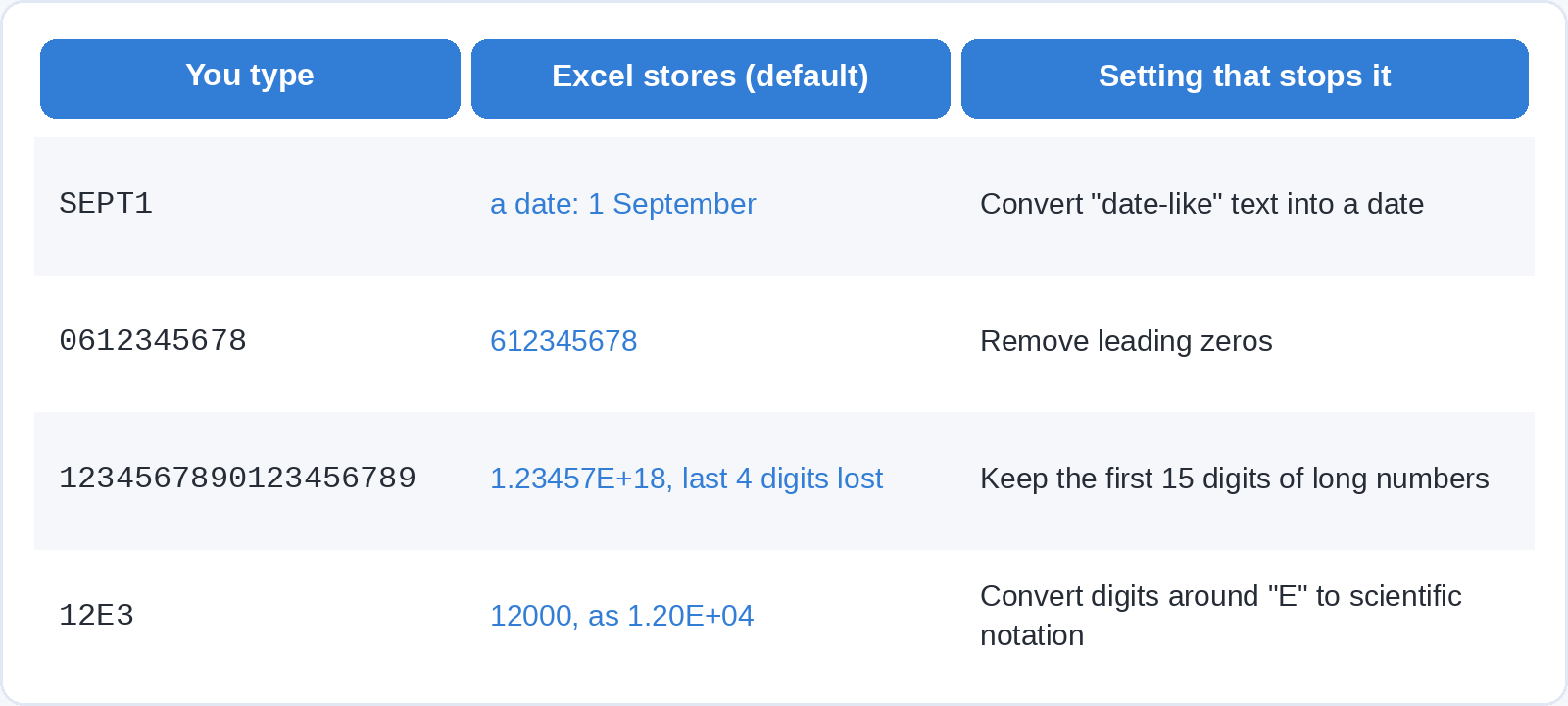
Anyone who works with product codes, phone numbers, postcodes or IDs should look at those four settings once. A column of phone numbers that starts with a zero, or a list of 16-digit order references, will lose digits under the default settings.
What should you learn first in Excel?
Learn Excel in the order the skills depend on each other, and each step makes the next one easier. The first five cover most everyday sheets.
- Moving around and entering data. Selecting cells and ranges, typing and editing, Ctrl and Z to undo, and dragging the fill handle in the bottom-right corner of a cell to continue a series.
- Formulas that point at cells. Write
=B2*C2rather than=12*4.5, so the result changes when the inputs do. Everything else in Excel builds on this habit. - The core functions.
SUM,AVERAGE,COUNT,MINandMAXcover most everyday totals. - Relative and absolute references. Copy a formula down and its cell references shift with it. A dollar sign, as in
$B$1, fixes a reference in place, which you need the first time you divide every row by one total. - Tables, sorting and filtering. Select your data and press Ctrl and T to make it a table, which adds filters and grows formulas automatically as you add rows.
- Decisions and lookups.
IFfor choices, andXLOOKUPfor finding a value in another list.XLOOKUPreplaces the olderVLOOKUPin current versions of Excel and is easier to get right. - Charts. Select a small summary, choose a chart type, and label it so a reader understands it without you in the room.
- Pivot tables. Summarise thousands of rows by category, month or person in a few clicks, without writing a formula.
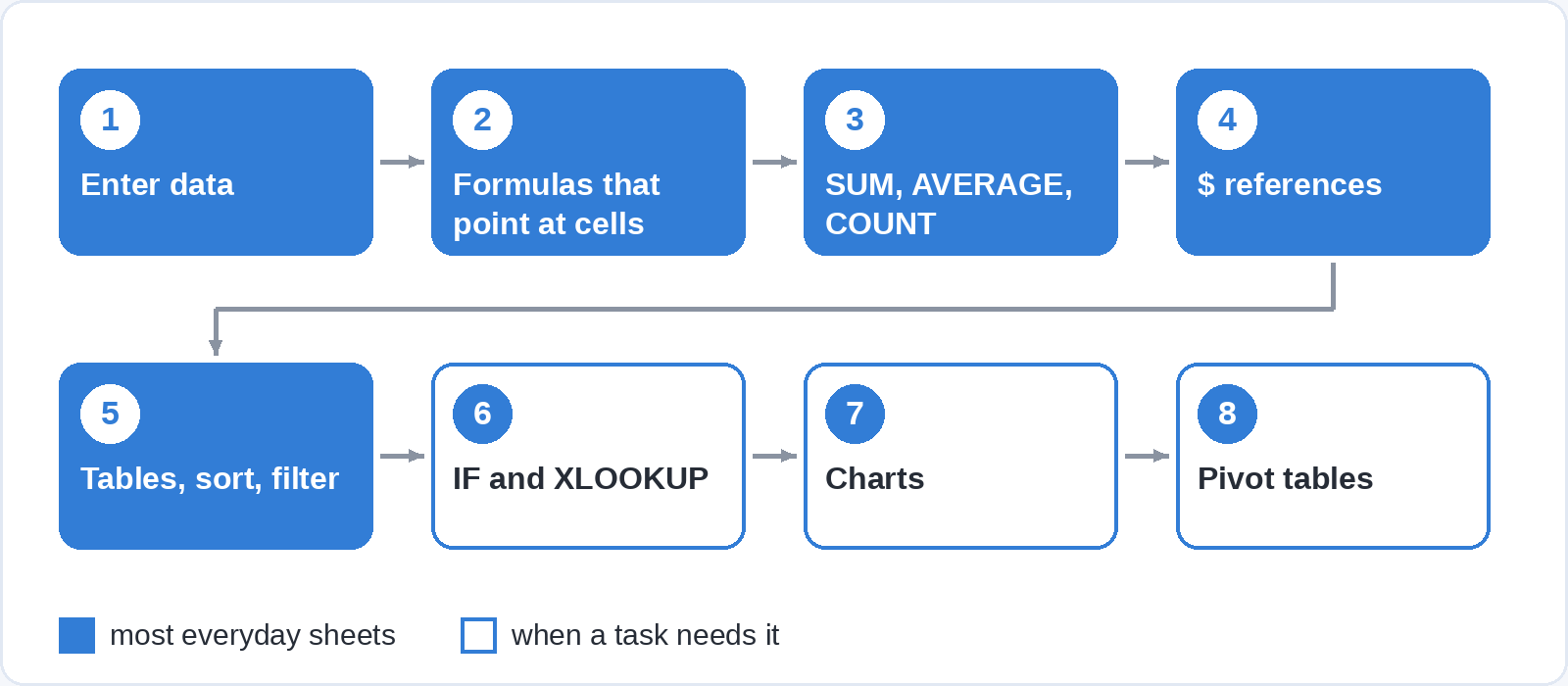
Spacing the practice helps more than one long session. Fifteen minutes on each of four days tends to stick better than an hour on a Sunday, for reasons covered in our guide on how to learn more easily.
Common questions about Excel
Is Excel free?
Excel for the web is free with a Microsoft account, as are the mobile apps for iOS and Android. The desktop app for Windows or Mac needs either a Microsoft 365 subscription or a one-time purchase such as Office Home 2024.
Is Excel hard to learn?
The basics are not. Entering data, writing a formula that refers to other cells and using SUM can be learned in an afternoon. Lookups, pivot tables and automation take longer, and most people learn them when a real task needs them.
What is the difference between Excel and a database?
Excel lets anyone type anything into any cell and trusts the result. A database enforces rules on every entry, lets many people write at once without overwriting each other and handles far more records. Excel suits analysis and personal or team files. A database suits shared records that must stay correct for years.
What does .xlsx mean?
It is the standard Excel workbook format since Excel 2007. The older .xls format is limited to 65,536 rows per sheet, so an old file is worth saving as .xlsx before you add to it. A workbook containing macros uses .xlsm.
Can I use Excel on a phone?
Yes. Microsoft’s Excel apps for iOS and Android open, edit and create workbooks, and they are part of the free plan. A phone screen suits checking and small edits better than building a large sheet.
Learn Excel properly
The eight skills above are the backbone of almost every job Excel does, and they are easier to learn in order from someone who uses them daily than from scattered search results. Soofos Plus gives you all 600+ courses on the platform, from Photoshop to mindfulness and Excel to singing, for €19 a month, with certificates included, a 30-day money-back guarantee and cancellation in two clicks.