
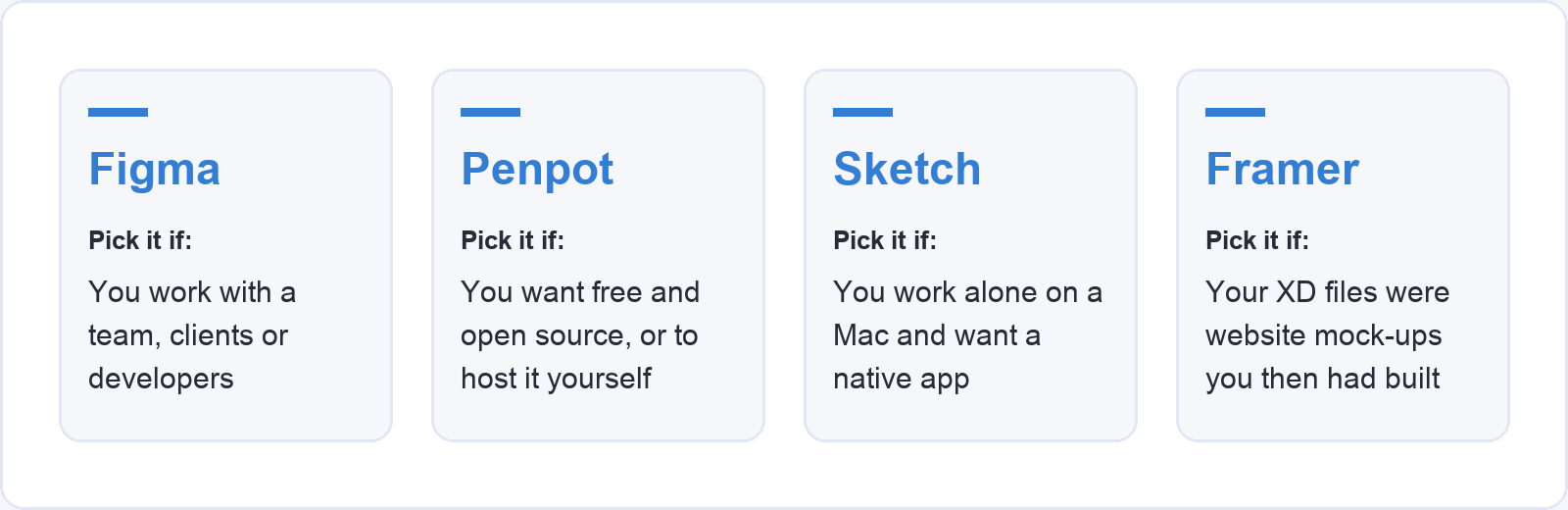
Adobe XD still opens, but Adobe’s own XD Help centre now carries a notice that the app is in maintenance mode, which means it is kept running and gets no new features. For most people the replacement is Figma, for anyone who wants a free and open-source tool it is Penpot, for Mac-only designers who prefer a native app it is Sketch, and for people who used XD to mock up websites it is Framer. Whichever you choose, you cannot simply open your old .xd files in it: Figma’s list of importable files leaves .xd out, Penpot’s own guide says it does not support XD files, and we found no direct import for Sketch or Framer either. The useful work therefore happens before you switch, getting every file out of Adobe’s cloud and into a form the next tool can read.
This guide covers both halves. The first part compares the four tools on platform, free plan and entry price. The second walks through moving your files, step by step, including the cloud documents that many XD users do not realise are not on their computer at all.
Is Adobe XD discontinued?
Adobe XD has not been removed, but it is no longer being developed. When we checked on 5 October 2026, Adobe’s XD product page led to the XD Help centre, which opens with the notice “Adobe XD is currently in maintenance mode.” The app still installs through the Creative Cloud desktop app for people whose plan includes it, and existing files still open.
The background is the Figma deal. Figma announced on 15 September 2022 that it had agreed to be acquired by Adobe, and on 18 December 2023 the two companies called it off, saying in Figma’s announcement that after fifteen months of regulatory review they no longer saw a path to approval.
Maintenance mode matters most for new work. A design tool that gets no new features also gets no new integrations, no new plugins worth building and no guarantee that it keeps pace with the next version of macOS or Windows. The notice gives no end date, which is a reason to move at your own pace rather than in a hurry, starting with the files you still edit.
Which Adobe XD alternative should you pick?
The right replacement depends on who you design with and what you hand over at the end. Figma is the closest like-for-like swap, with the same mix of design, prototyping and developer handover. Penpot does the same job in the browser for free, and can run on your own server. Sketch suits a designer who works alone on a Mac and wants a native app. Framer suits someone whose XD files were always website mock-ups, because Framer builds and publishes the site itself.
All four vendors publish their prices in US dollars, so the figures below are in dollars as each vendor lists them, checked on their own pricing pages on 5 October 2026.
| Tool | Runs on | Free option | Paid entry price |
|---|---|---|---|
| Figma | Browser, desktop apps for macOS and Windows | Starter plan: unlimited drafts, one team with one folder and 3 files | Professional, Full seat: $16 a month |
| Penpot | Browser, or self-hosted on your own server | Free plan: up to 8 team members, 10 GB storage | Unlimited: $7 per editor a month, capped at $175 a month |
| Sketch | macOS app, plus a web app for viewing | 30-day free trial, free for education | Standard: $12 per editor a month, billed yearly, or a $120 Mac-only licence |
| Framer | Browser | Free plan on a Framer domain, 1 GB bandwidth | Basic: $10 a month per site |
Figma: the direct replacement for most teams
Figma covers the same ground as XD, so moving from one to the other is the shortest step of the four. Frames take the place of artboards, components and prototyping work on the same principles, and files live in the browser with desktop apps for macOS and Windows, so a team on mixed computers can open the same file. Developers can be given a cheaper Dev seat ($12 a month on the Professional plan) to inspect designs without paying for a full editing seat, and a Collab seat costs $3 a month for people who only comment.
The free Starter plan is generous for trying it out and tight for real work. Figma’s help centre describes it as a single team with one folder and three files, plus unlimited drafts and 30 days of version history. A freelancer moving a dozen client projects across will hit that limit in the first afternoon, so budget for the Professional plan if you plan to keep projects in shared files.
Penpot: free, open source and in the browser
Penpot is the strongest choice if price or ownership is the deciding factor. It is open source, runs in the browser, and can be installed on your own server, which matters for organisations that cannot keep design files on someone else’s cloud. Penpot builds its layouts with CSS Grid and Flex, and its files are built on open standards (SVG, CSS, HTML and JSON), so what a designer sets up maps closely to what a developer writes.
The free plan allows up to 8 team members with unlimited viewers, 10 GB of storage and seven days of version history. The paid Unlimited plan is $7 per editor a month and stops at $175 a month however large the team gets, which makes it far cheaper than Figma for a big studio. If you hire freelancers or hand files to agencies, ask which tool they work in before you commit, and check that any plugin your team relies on has a Penpot equivalent.
Sketch: a native app for Mac users
Sketch is the only tool on this list that is a native desktop app first. If you work on a Mac, mostly alone, and prefer a native Mac app to a browser tab, it is the most comfortable of the four. A subscription starts at $12 per editor a month on the Standard plan, billed yearly, and includes a web app and iPhone and iPad apps for viewing and prototyping.
Sketch also sells a Mac-only licence for $120 per seat with a year of updates, which suits a designer who wants to own the software rather than rent it. That licence covers the Mac app only, with no collaboration or online sharing. Sketch’s editing app does not run on Windows, so a team with even one Windows user should look at Figma or Penpot instead.
Framer: if your XD files were websites
Many people used XD to design a website and then handed the mock-up to a developer to build. Framer removes that second step: you design the pages and Framer publishes them as a live site, with a built-in CMS for collections of content such as articles. The free plan publishes on a Framer domain with 1 GB of bandwidth a month, and the Basic plan, at $10 a month per site, adds a custom domain.
Framer is a poor fit for app design, design systems or anything that a developer will build in their own code, because its output is a Framer-hosted website. If you designed mobile apps or product screens in XD, choose Figma or Penpot.
How do you move your Adobe XD files to another tool?
Moving from XD takes four steps: bring every cloud document down to your computer as a local .xd file, export a readable archive of every artboard, convert the files you still edit into the new tool, and check each converted screen against the original. Do the first two steps for every project, including the ones you think you are finished with, because they only work while XD is still installed.
Step 1: Save every cloud document as a local file
XD has two kinds of file, and only one of them is on your computer. A local document is an .xd file you can see in your file manager. A cloud document is stored in Adobe’s Creative Cloud: Adobe’s XD FAQ explains that cloud documents are not saved to your computer’s file system and use the .xdc format instead. If you ever saved to Creative Cloud from inside XD, some of your work is stored in this second form, and it will not show up when you search your computer for .xd files.
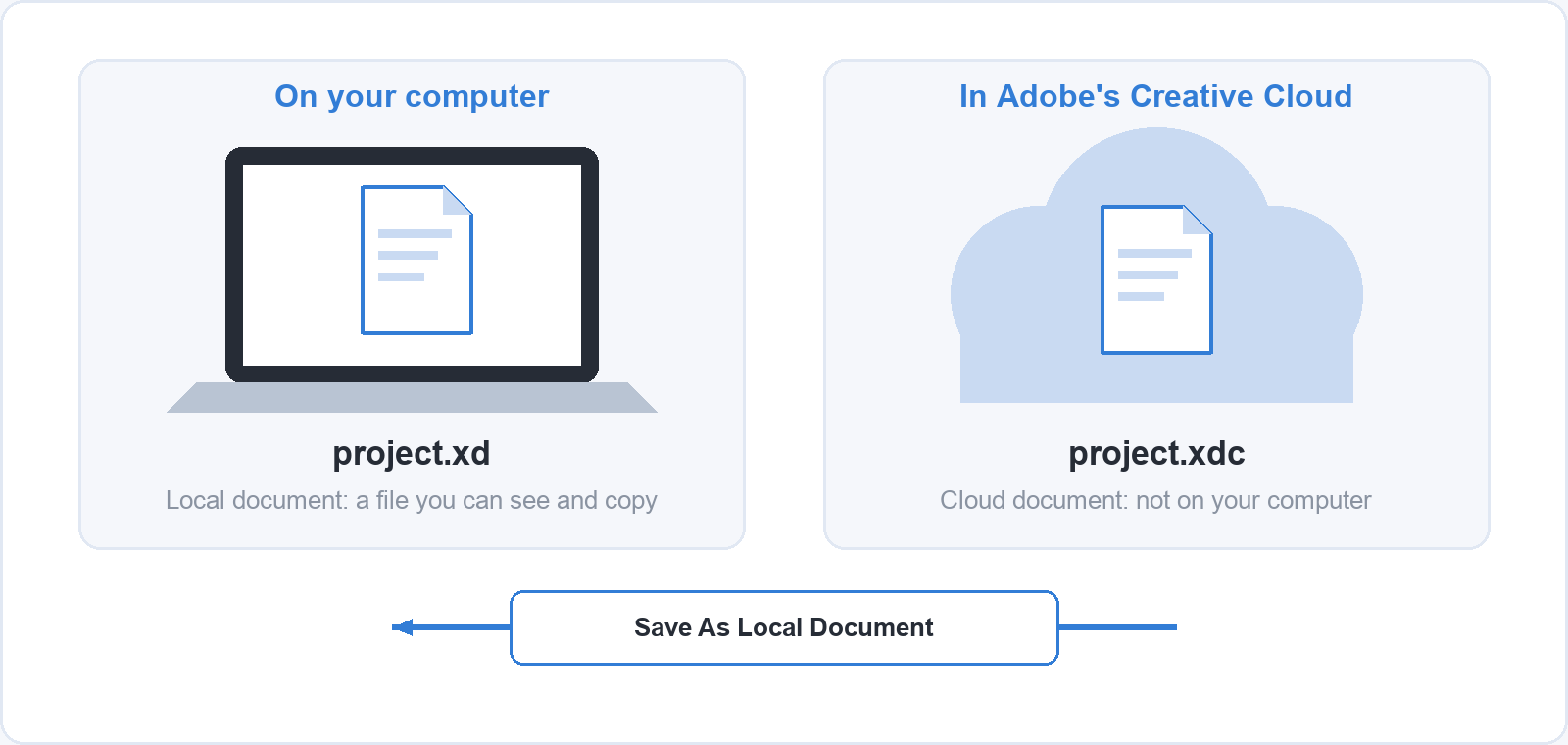
Open each cloud document in XD and choose Save As Local Document (from the File menu on a Mac and the app menu on Windows), then save it to a project folder you control. Every converter and every export path below starts from a local .xd file, so this step decides what you can take with you.
Step 2: Export an archive you can read without XD
Before converting anything, export every artboard of every project as an image, so you have a record of the work that does not depend on XD or any other design tool. In XD, select the artboards and use File > Export to save them as PNG; PNG is the format any computer can open. Keep the exports in a folder beside the .xd file.
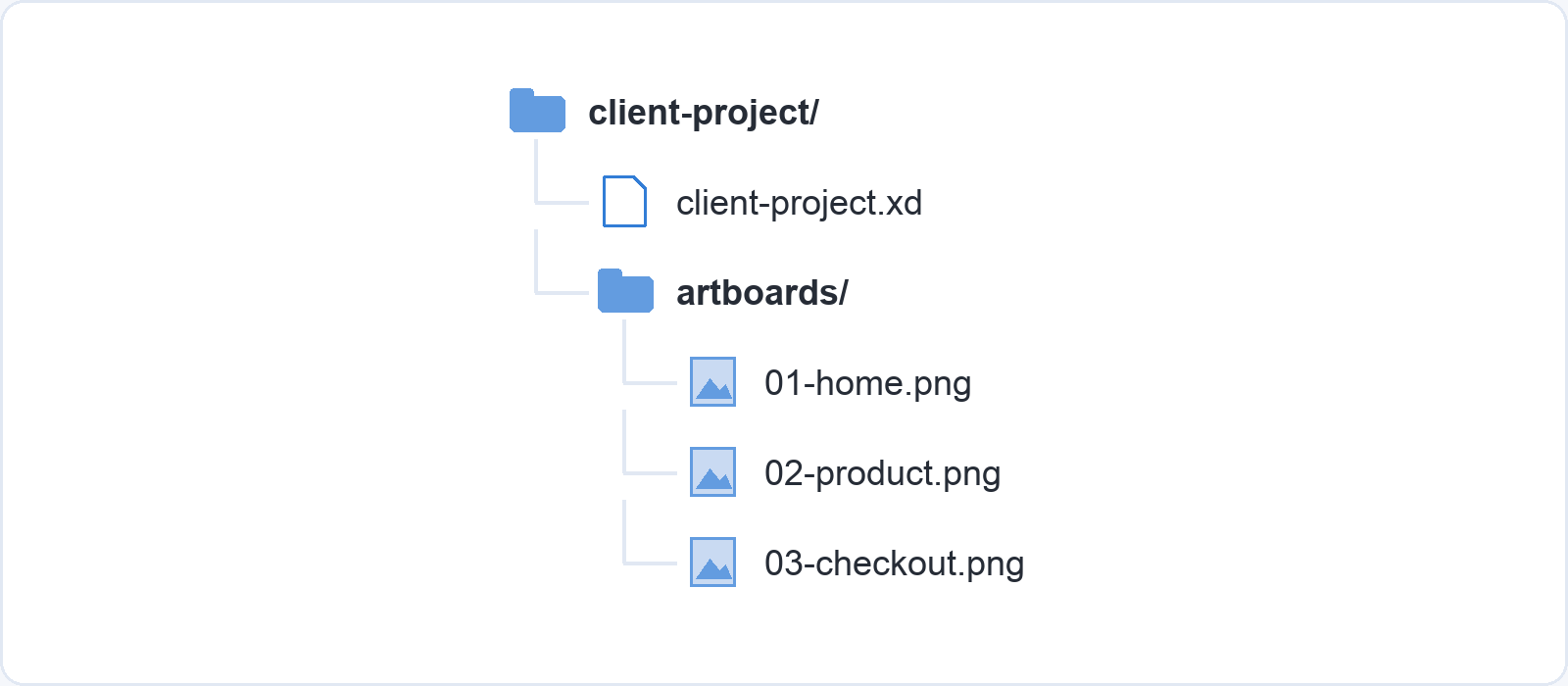
This archive is what you will check converted files against in step 4, and for finished projects it may be all you need. A client asking for the homepage you designed two years ago needs a PNG, and redrawing every finished project in a new tool is wasted time.
Step 3: Convert the files you still edit
Figma does not open .xd files: its help centre lists Sketch, Figma’s own formats, PNG, JPG and PowerPoint among the file types it imports, and XD is not one of them. The route into Figma is a conversion plugin. Convertify, made by Hypermatic, works inside Figma: you choose “Import Adobe XD to Figma” and drag a local .xd file into the plugin to bring the design into Figma. Other plugins, such as Pixel Fine Converter and Magicul, do the same job, and it is worth testing one on a small file before committing a whole library to it.
Penpot does not read .xd files either. Its own migration guide recommends selecting the artboards in XD, exporting them with File > Export > Selected as SVG, exporting embedded images separately as PNG or JPG (because the SVG leaves them out), and then dragging the SVG files and the images into Penpot. Leave text as live text when you export, because text converted to outlines cannot be edited afterwards.
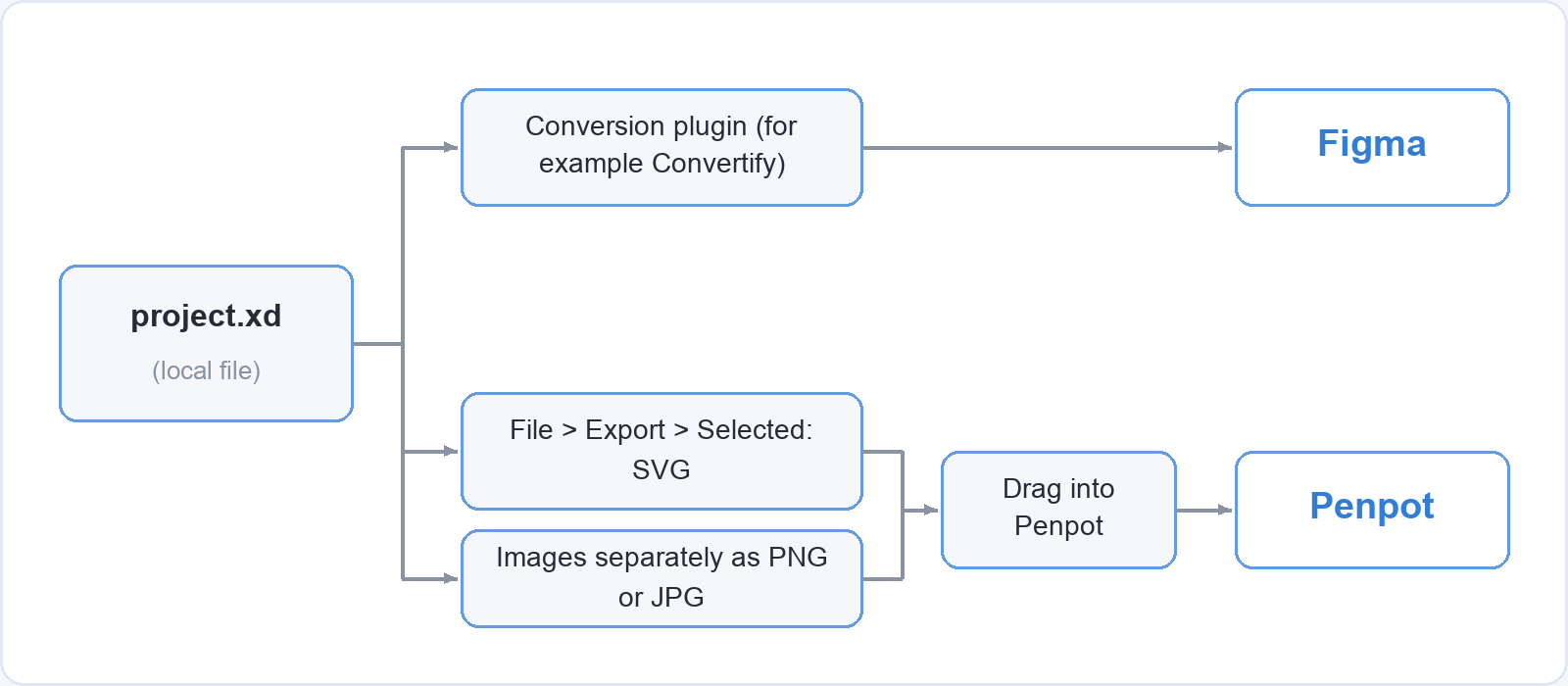
We found no direct .xd import for Sketch or Framer. Magicul advertises an XD-to-Sketch converter, and the other route is to rebuild screens by hand using the PNG archive from step 2 as reference, which is slow for a large project and often quicker than tidying up a poor conversion of a small one.
Step 4: Check every converted screen against the original
No conversion route moves everything across intact. Penpot’s guide names what tends to break: advanced effects, some fonts and layer structures may not come through correctly, and masks, prototype interactions and components have to be rebuilt. Plugin conversions into Figma vary from file to file, which is why the first file you convert should be a small one you know well.
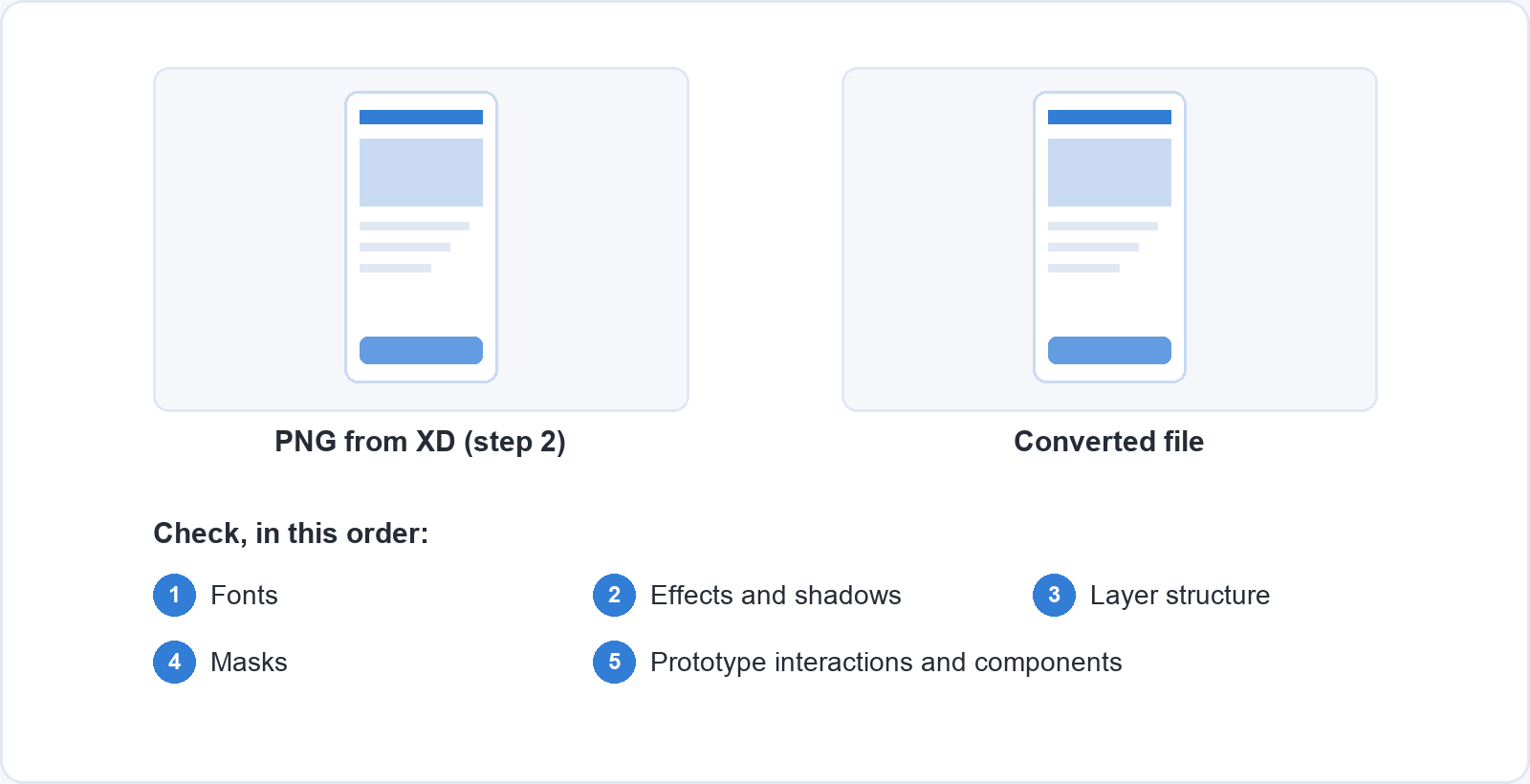
Open the converted file next to its PNG from step 2 and go through the screen in that order: fonts first, because a substituted font can change line breaks across the whole screen, then effects and shadows, then the layer structure, then masks, and finally the prototype links and components you will need to rebuild. Keep XD installed until the last file you care about has passed this check, because once it is gone there is no way to reopen the original.
Common questions about leaving Adobe XD
Can I still use Adobe XD?
Yes. It still installs through the Creative Cloud desktop app for plans that include it, and existing files open. It is in maintenance mode, so it receives no new features, and it is a poor choice for starting new long-term projects.
Can Figma open Adobe XD files?
Not directly. Figma’s list of importable file types does not include .xd. You convert XD files with a Figma plugin such as Convertify, which works from a local .xd file, so save any cloud documents locally first.
What is the best free alternative to Adobe XD?
Penpot. Its free plan allows up to 8 team members with unlimited viewers and 10 GB of storage, it runs in the browser on any computer, and it is open source, so you can also host it yourself. Figma’s free Starter plan is limited to three shared files plus unlimited drafts.
Is there an Adobe XD alternative for Windows?
Figma has a desktop app for Windows as well as the browser version, and Penpot and Framer run in any modern browser. Sketch is the one tool here that does not run on Windows, because its editing app is macOS only.
What happened between Adobe and Figma?
Figma announced on 15 September 2022 that it had agreed to be acquired by Adobe. On 18 December 2023 the two companies abandoned the deal, saying they no longer saw a path to regulatory approval. Figma remains an independent company, and XD remains in maintenance mode.
Learning the next tool
Switching tools is a good moment to look again at the design decisions underneath the software. If you are rebuilding a client’s screens anyway, our guide to building a brand identity covers the colour contrast and type choices that every screen inherits, and what graphic design actually involves is a useful refresher on working to a brief.
Soofos has 40 free online courses, covering subjects such as Photoshop, SEO and photography, taught by real instructors in short video lessons. Create a free account and start with whichever one fits the work you are moving into.