

A drop-down list in Excel is a data validation rule that limits a cell to options you choose. Select the cells, open Data and then Data Validation, set Allow to List, point Source at your options, and click OK. That part really does take about two minutes. Everything after it in this article is about the choices that decide whether the list still works in six months.
Most spreadsheets that go wrong go wrong in one column. Someone types Netherlands, someone else types NL, a third person writes The Netherands at half past five on a Friday, and the summary at the bottom counts them as three different places. A drop-down turns that column into a set of agreed answers, which is what makes filtering, lookups and pivot tables behave.
How do you make a drop-down list in Excel?
Five steps, and the first one matters more than it looks.
1. Put the options somewhere you can find them again
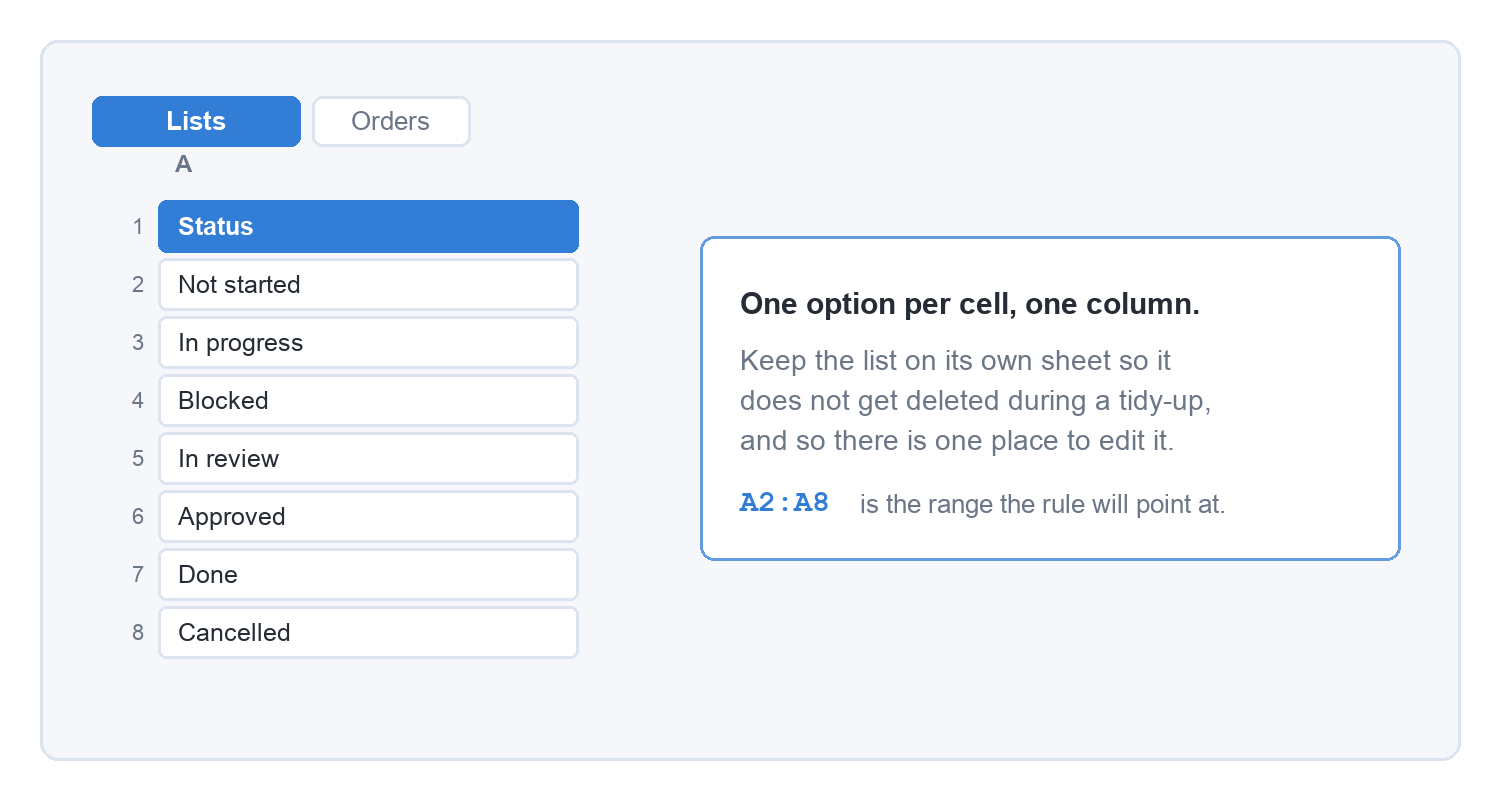
Type your options into a single column, one per cell, on a separate sheet. Call the sheet Lists or Settings. Keeping the source out of the working area means nobody deletes it while tidying up, and it gives you one place to edit when the options change.
2. Select the cells that should carry the list
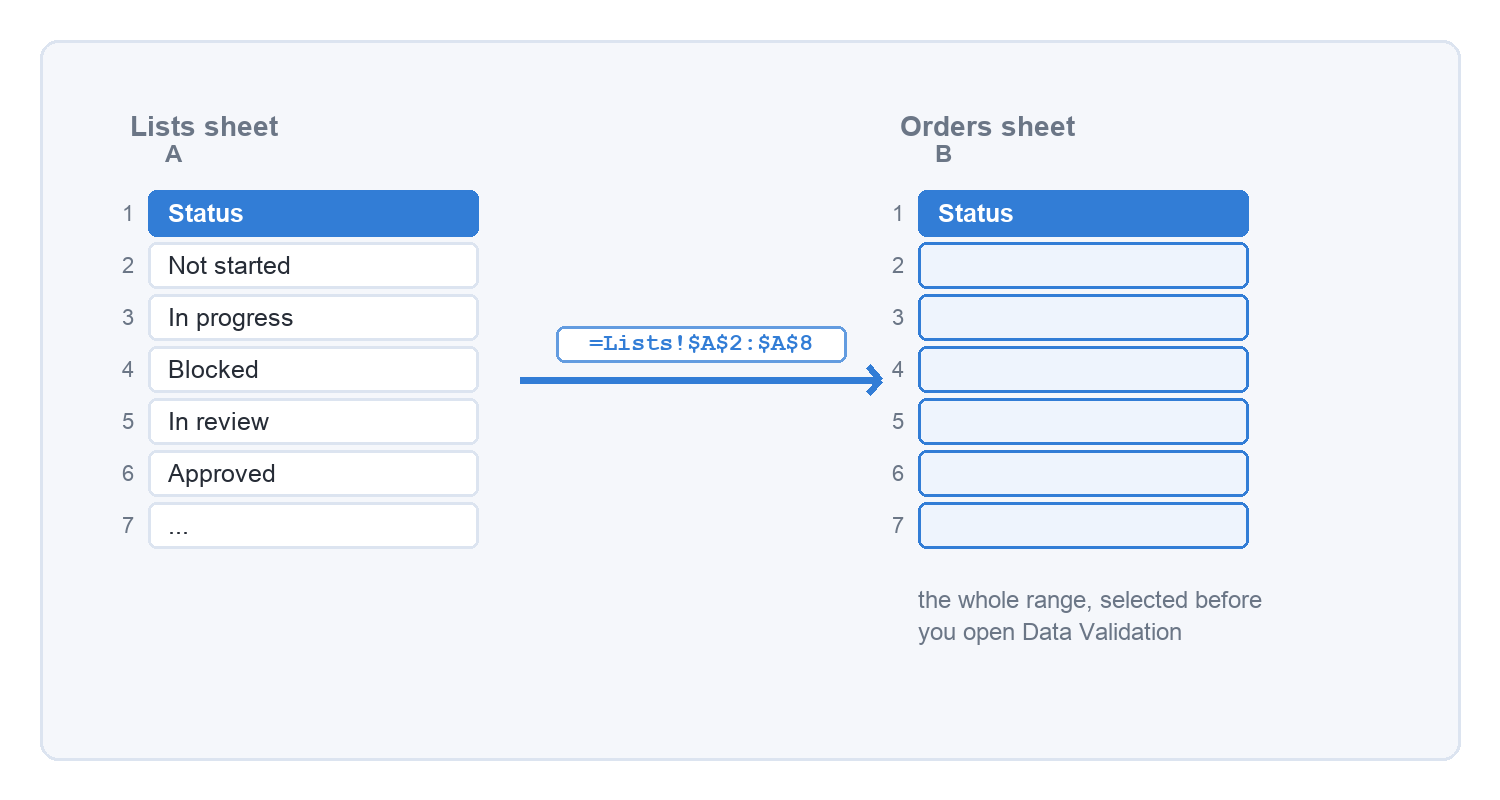
Select the whole range you want validated, not a single cell. Applying the rule to B2:B200 now is the difference between a list that covers the sheet and a list you keep copying down every time someone adds a row.
3. Open Data, then Data Validation
The command sits on the Data tab, in the Data Tools group. Excel for the web keeps it in the same place, and Microsoft’s own instructions carry a Web tab alongside Windows and macOS, so a browser-only setup is not a blocker.
4. Set Allow to List, then fill in Source
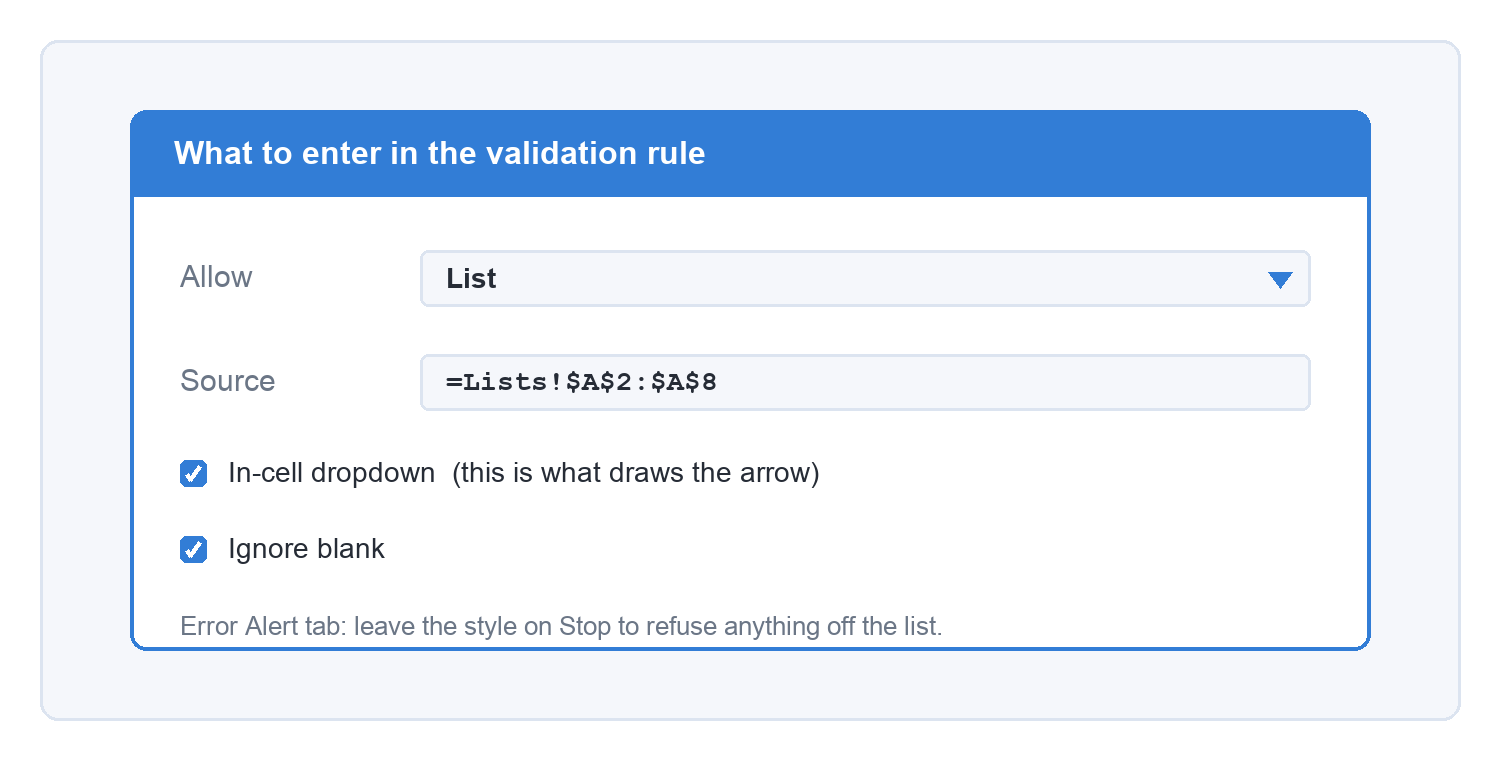
In the Settings tab, choose List in the Allow box. Click in Source and select your options on the Lists sheet, which writes something like =Lists!$A$2:$A$8 for you. Leave In-cell dropdown ticked, because that checkbox is what draws the little arrow. Ignore blank decides whether an empty cell counts as an error, and on most sheets you want it ticked.
5. Click OK, then test it
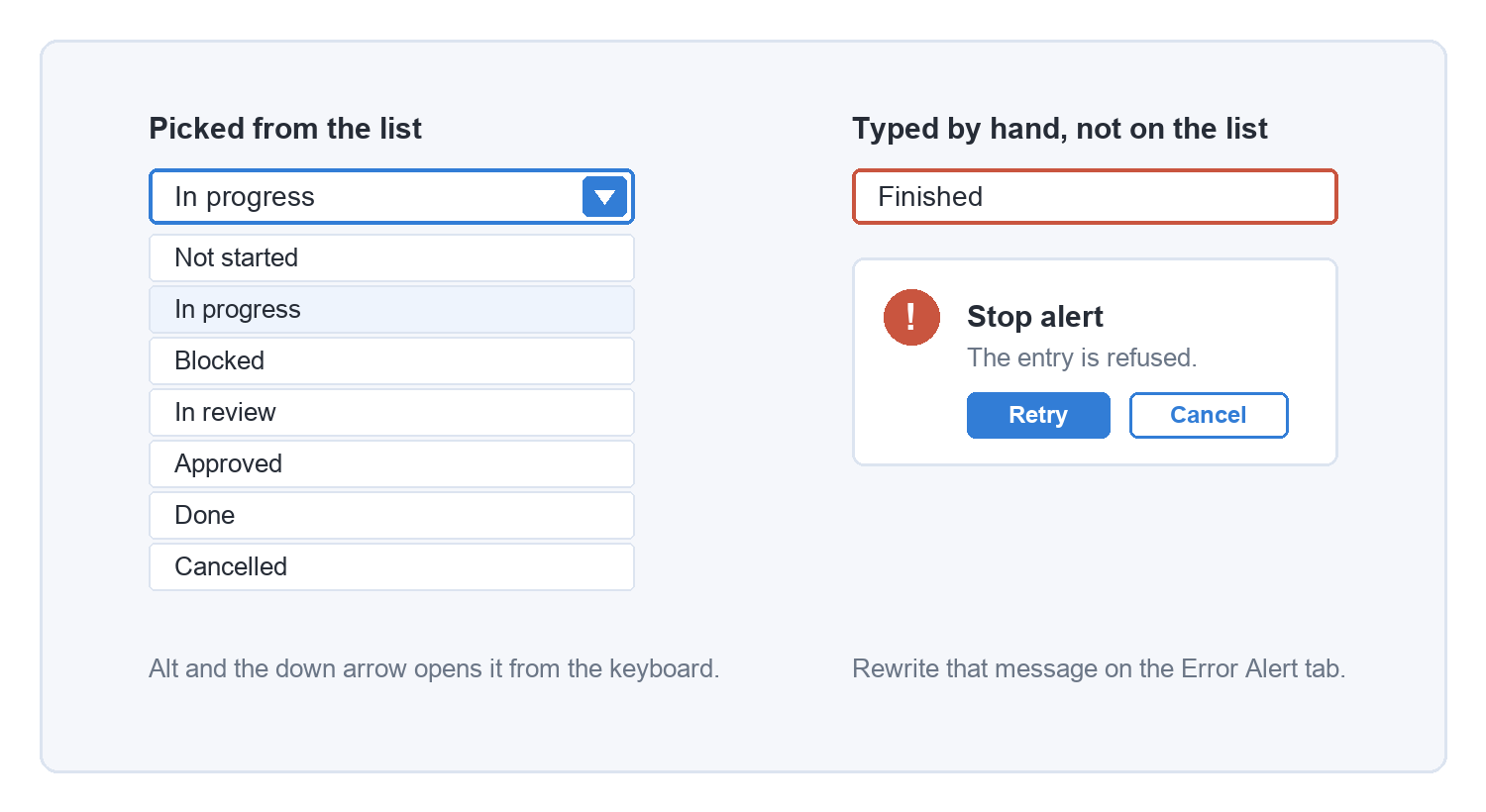
Click a validated cell and the arrow appears on its right edge. Alt and the down arrow opens the list from the keyboard, which is quicker than reaching for the mouse on a long run of data entry. Type a value that is not on the list and Excel refuses it, with a message you can rewrite yourself on the Error Alert tab.
What can go in the Source box?
Three things, and they differ mostly in how much maintenance they cost you.
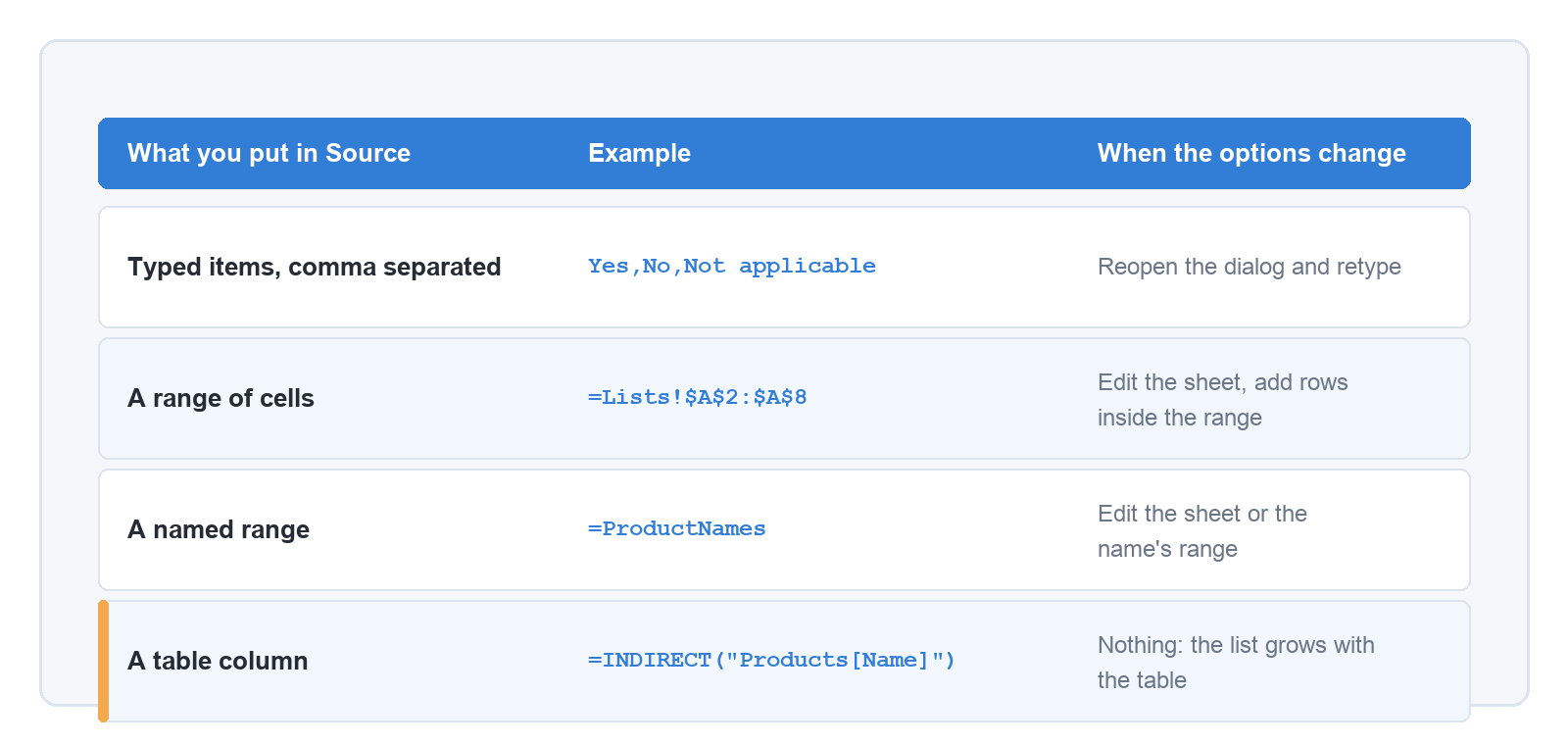
Typed items, separated by commas: Yes,No,Not applicable. Quickest to set up and the most annoying to change, because every edit means reopening the dialog.
A range of cells: =Lists!$A$2:$A$8. The usual choice. The dollar signs keep the reference anchored when rows move around.
A named range or table column: =ProductNames. A name survives someone renaming the sheet, and it reads better than a cell reference when you come back to the file a year later.
How do you make the list grow when you add an option?
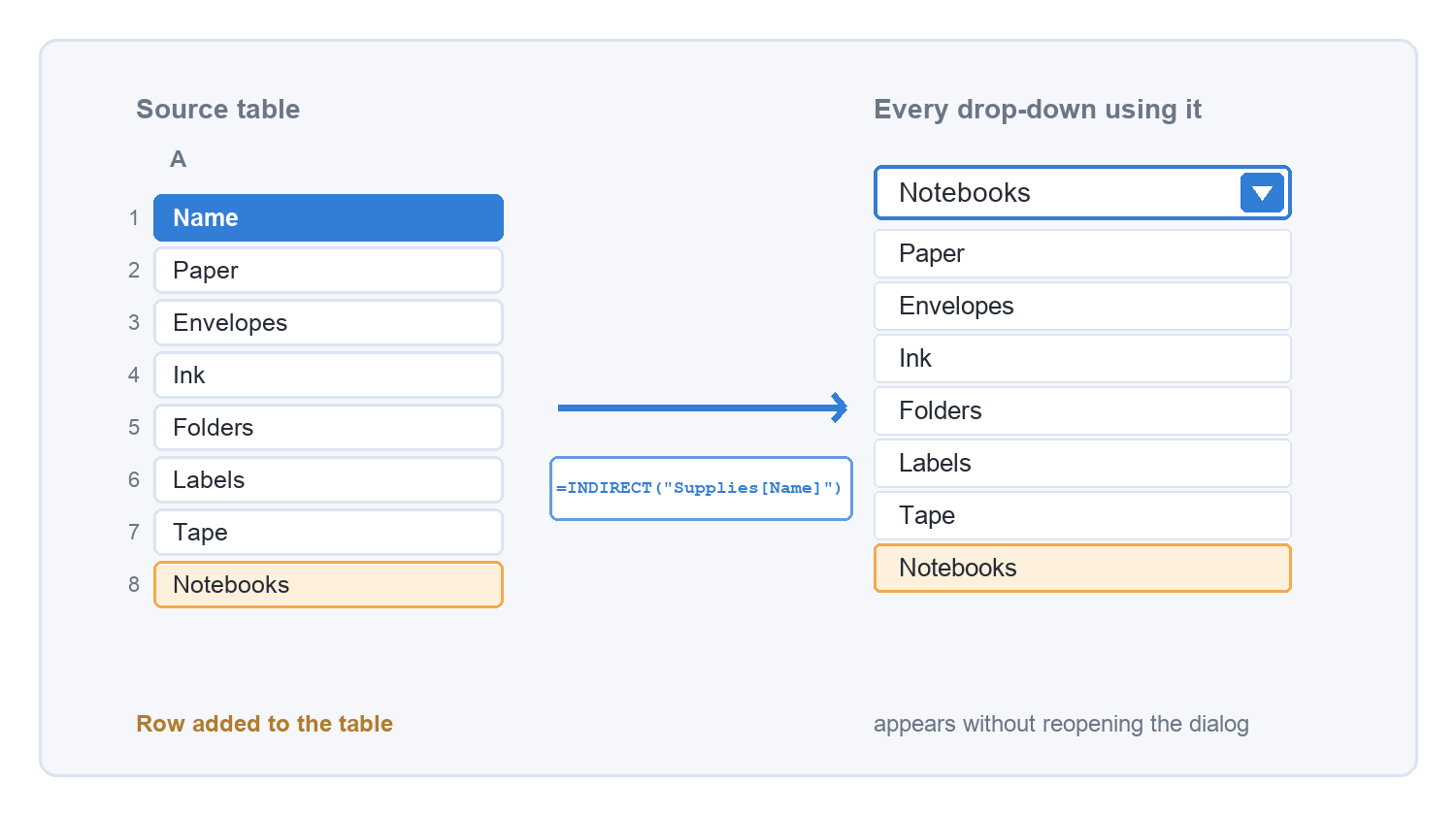
Turn the source into an Excel table and point the rule at the table column. Select the options, press Ctrl and T to make a table, then give it a clear name in the Table Design tab.
Data Validation will not accept a structured reference typed straight into Source, so wrap it: =INDIRECT("Products[Name]"). Add a row to the table and the new value appears in every drop-down that uses it, with no dialog to reopen.
Microsoft 365 has a second route. Build the list with a formula such as =SORT(UNIQUE(Orders[Supplier])), which spills down the column, then set Source to the spill reference =$F$2#. The hash tells Excel to follow the whole spilled range however long it becomes.
How do you make one drop-down depend on another?
Name each sub-list after the option that should reveal it, then read the name back with INDIRECT.
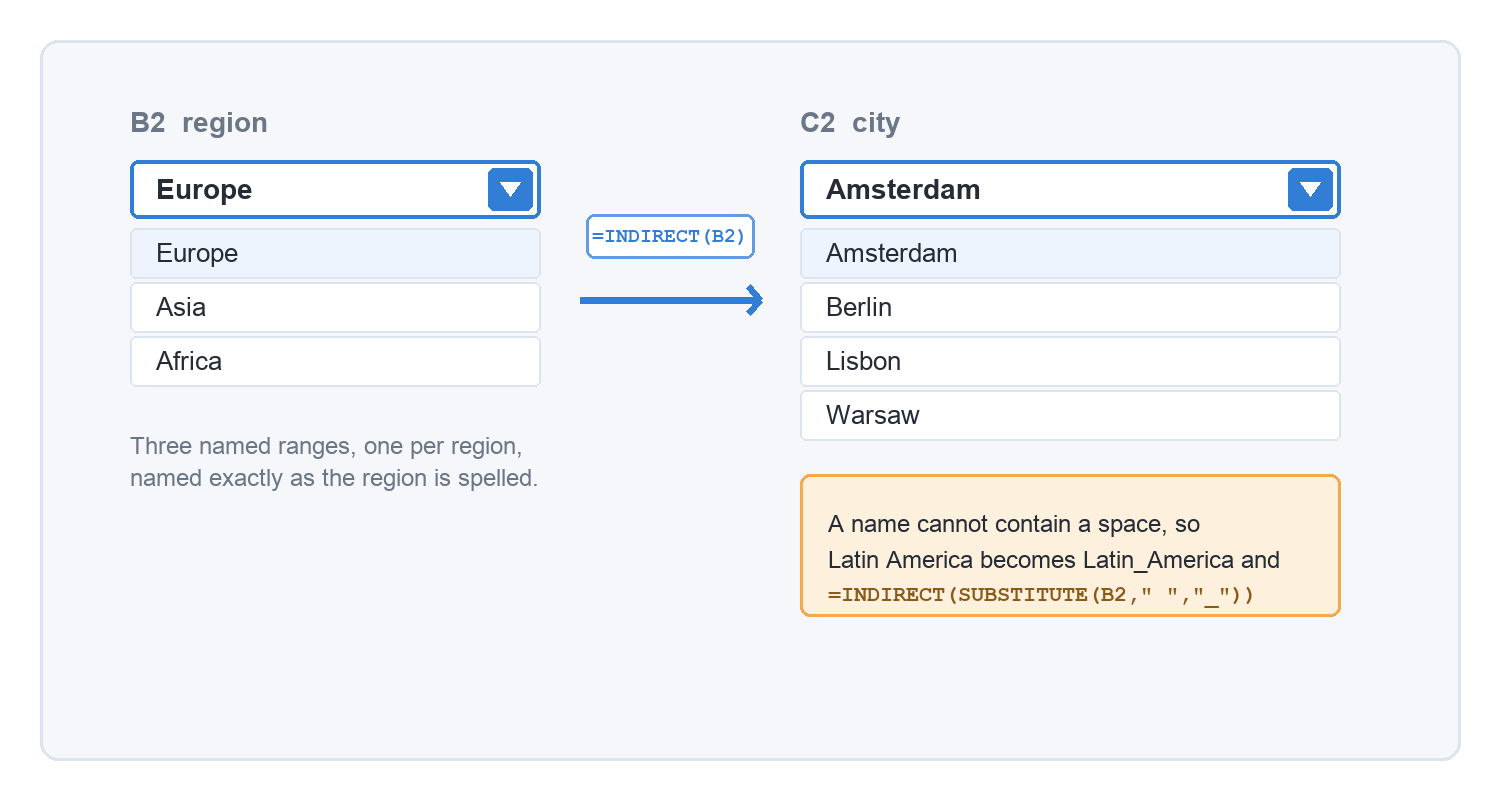
Say column B holds a region and column C should hold a city in that region. Make a named range for each region, with the name spelled exactly as the region appears in the first list: Europe, Asia, Africa. Cell B2 gets an ordinary list of regions. Cell C2 gets Source =INDIRECT(B2). Pick Europe in B2 and C2 offers the European cities.
Two things commonly break this. Range names cannot contain spaces, so a region called Latin America has to be named Latin_America and the formula becomes =INDIRECT(SUBSTITUTE(B2," ","_")). And changing the parent does not clear the child, so a city from the old region can sit there looking valid until somebody notices.
Why does my drop-down still let people put anything in?
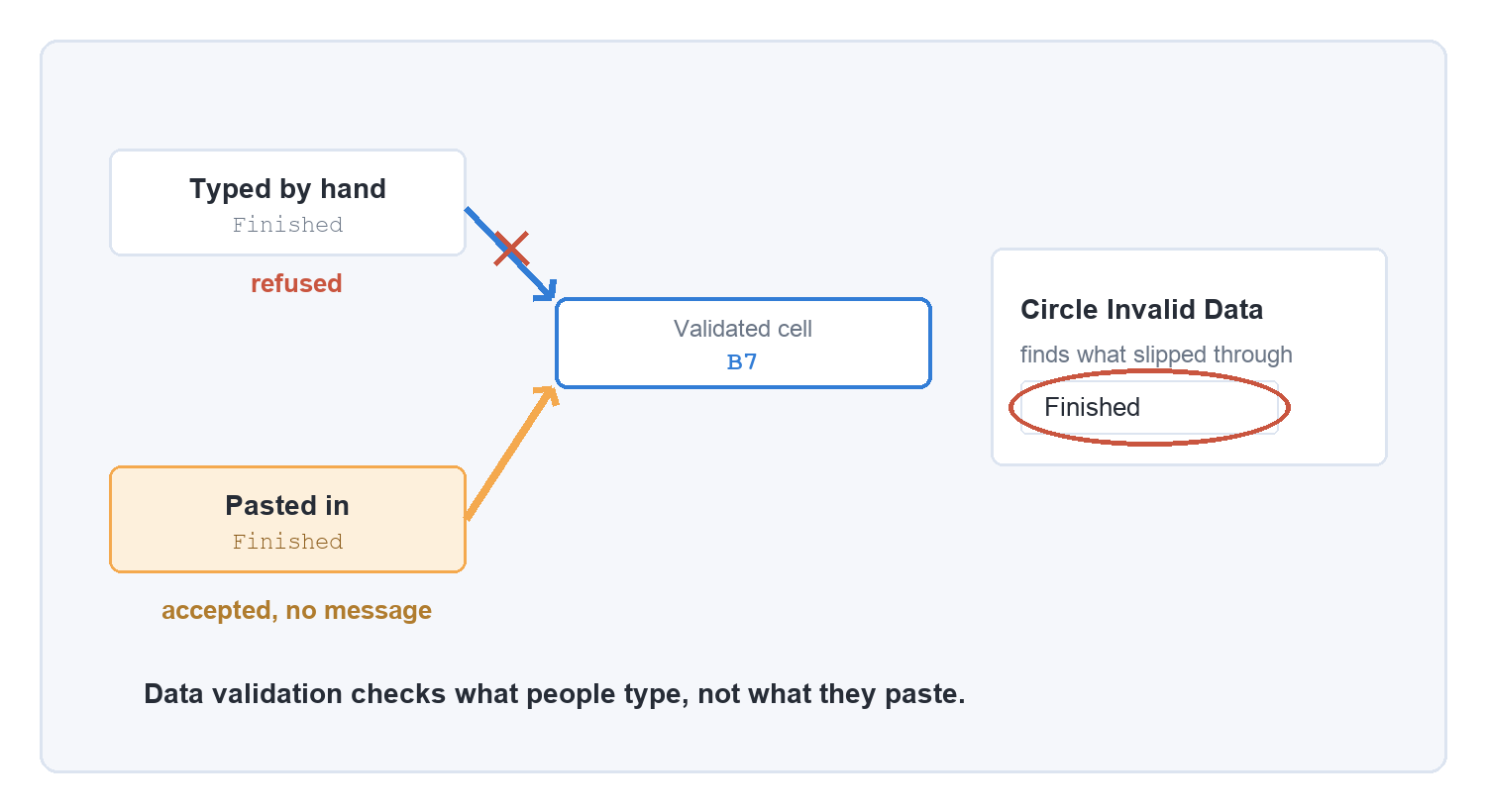
Because data validation only inspects what is typed. Microsoft’s documentation says it plainly: validation is designed to show messages and prevent invalid entries only when users type data directly in a cell, and when data is copied or filled, the messages do not appear. Paste a value over a validated cell and the value goes in. Paste a whole copied cell and you can replace the rule itself.
Three things reduce the damage.
Choose the Error Alert style deliberately. Stop offers Retry or Cancel and refuses the entry. Warning lets the reader keep an invalid value by clicking Yes. Information is a note they click past. Stop is the default, and on a shared sheet it is usually the one you want.
Use Circle Invalid Data, on the Data tab under Data Validation. It draws red rings around every value that breaks a rule, pasted ones included, which is the quickest way to audit a sheet other people have filled in.
Protect the sheet if the file is going to travel. Validation guides the person typing; sheet protection is what keeps the rule itself from being overwritten.
Can you search inside a long drop-down list?
Yes, on current builds. AutoComplete filters the list as you type and matches text anywhere in an item rather than only at the start. Microsoft shipped it for Excel for Windows in Current Channel version 2306, build 16.0.16501.20004, and later brought it to Mac version 16.77, iOS 2.77 and Android build 16.0.16816.10000. There is nothing to switch on.
Older builds give you a plain scrolling list, which is the practical argument for keeping a drop-down to around twenty items and splitting anything longer into two dependent lists.
How do you change or remove a drop-down list?
Select a cell that already carries the list and open Data Validation. Edit the Source, and before you click OK, tick “Apply these changes to all other cells with the same settings” so you are not repairing two hundred cells one at a time. To take a list off entirely, open the same dialog and click Clear All.
If you have inherited a workbook and cannot tell which cells are validated, press Ctrl and G, choose Special, then Data validation. Excel selects every cell that carries a rule.
Questions people ask
Can I make a drop-down list in Excel for the web?
Yes. Data Validation sits in the same place on the Data tab, and Microsoft’s instructions include a Web tab next to Windows and macOS.
Why can’t I see the arrow?
It only shows while the cell is selected, so a validated column looks like any other column at rest. If it does not appear on selection, reopen Data Validation and check that In-cell dropdown is ticked.
Can the options live on another sheet?
Yes. Point Source at the other sheet’s range, or name that range and use the name, which keeps working if the sheet is later renamed.
Can one drop-down show two columns?
No. A validation list reads a single column or row. If you need a code and a description, show one of them and look the other up with XLOOKUP or VLOOKUP.
Can I colour the options?
Not from the validation dialog. Add conditional formatting to the same cells with one rule per value.
How is this different from a combo box?
A validation list belongs to the cell and moves, sorts and copies with it. A combo box is an object sitting on top of the sheet, which suits a dashboard and gets in the way almost everywhere else.
Good spreadsheets are mostly small habits: options on their own sheet, a table as the source so the list grows by itself, an error alert set to Stop so a wrong value fails loudly. None of it is difficult and almost none of it gets taught, which is why a free Soofos account includes 40+ introduction courses.
If you would rather learn a tool in order than in fragments, Soofos Plus opens all 600+ courses for €19 a month and starts with a free week.