
You paint or draw on paper and you keep wondering if a tablet could work for you too. This guide explains what Adobe Fresco is, how painting in it feels, and what you need to start, all from a painter’s point of view rather than a designer’s.
Adobe Fresco is a free drawing and painting app from Adobe for iPad, iPhone and Windows touch devices, used with a stylus or your finger, and the feature Adobe itself singles out is its live brushes, a set of watercolour and oil brushes that blend and spread on the screen the way wet paint does on paper.
What Adobe Fresco is, in plain words
Adobe Fresco is an app for drawing and painting on a touchscreen. Adobe’s own help pages describe it as “a drawing and painting app built for touch and stylus devices”, and it runs on iPad, iPhone and Windows. You open a blank canvas, pick a brush and paint with a stylus, much as you would with a pencil or a brush on a sheet of paper.
The name comes from the old wall-painting technique, in which the painter works colour into wet plaster. Adobe points to that technique when it explains the name, and the link is easy to see once you use the app: its watercolour stays wet while you paint.
Fresco is made for people who draw and paint: sketching, illustration, watercolour and oil studies. It is not mainly a tool for designing logos, posters or page layouts. Adobe says the app is meant for both new and experienced artists, and its interface keeps the tools you need in one toolbar that you can place on the left or the right side of the screen.
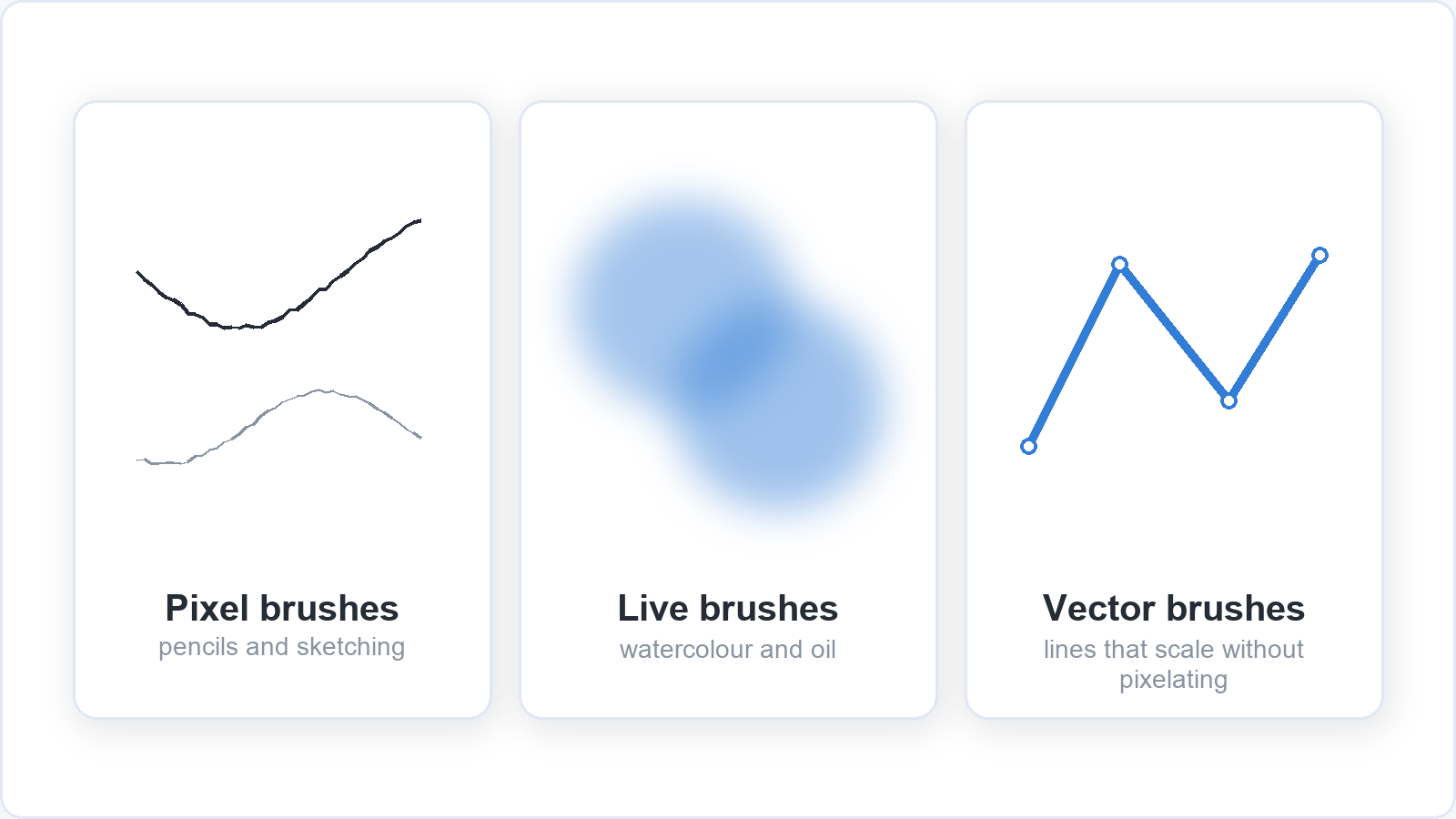
Inside the app you find three families of brushes. Pixel brushes work like the painting brushes in Photoshop (Adobe says Fresco has the Photoshop painting engine) and include sketching brushes such as a pencil. Live brushes are the watercolour and oil brushes that simulate wet paint. Vector brushes draw lines that stay sharp at any size, which is useful for clean outlines but less important if you mainly paint. Adobe says the app comes with thousands of brushes, and you can also import Photoshop brushes.
Where does it sit among Adobe’s other apps? Adobe’s own FAQ puts it simply: Photoshop on the iPad is for editing and retouching images, and Fresco is for drawing and painting from a blank canvas. Fresco files are saved to your Adobe cloud storage, so you can open them later in Photoshop, and you can send a painting to Illustrator as a PDF that keeps its layers. If you never use either of those programs, you can ignore all of this and use Fresco on its own.
Who Fresco suits, and who it may not suit
Fresco suits painters and hobby artists who are curious about painting on a tablet and already own, or are thinking of buying, a device with a stylus. The app itself costs nothing, so the main thing you invest is time.
It also suits people who want to paint or sketch without setting everything out first. There is no water to fetch, no palette to clean and no paper to stretch, and a painting can be started on the sofa and finished on a train. That makes a twenty-minute session on a weekday evening practical, because almost none of it goes on setting up and clearing away.
Fresco may not suit you if the materials are a large part of why you paint. A screen does not smell of linseed oil, a stylus does not drag through thick paint, and you do not get the feel of a brush catching on rough watercolour paper. If that is you, a tablet is more likely to become a sketchbook for studies than a replacement for your paints.
Fresco will not make anyone a better painter on its own. The same skills matter on a tablet as on paper: looking closely, judging values, mixing colour and placing shapes. If you are still building those, our guide on learning to draw as an adult covers how to train your eye, and everything in it applies to Fresco too.
How painting in Fresco feels compared with paint on paper
Painting in Fresco feels familiar in the hand and different under it: you hold a pen-shaped stylus, choose a brush and build up colour in layers, but the surface is smooth glass and nothing dries on your fingers.
The familiar part comes quickly. You pick a brush from a panel, choose a colour, set the brush size and paint. With a pressure-sensitive stylus, pressing harder gives a thicker stroke, as it does with a real brush. Working from light to dark, or from a loose wash to fine detail, works in Fresco the way it does on paper.
The difference is mostly in the surface. Glass is smoother than paper, so the stylus glides where a pencil would grip. Your hand rests on the screen while you paint, and you look at your painting through a sheet of glass rather than at the paint itself. Colours on a backlit screen can also look brighter than they will in print, which matters if you plan to print your work.
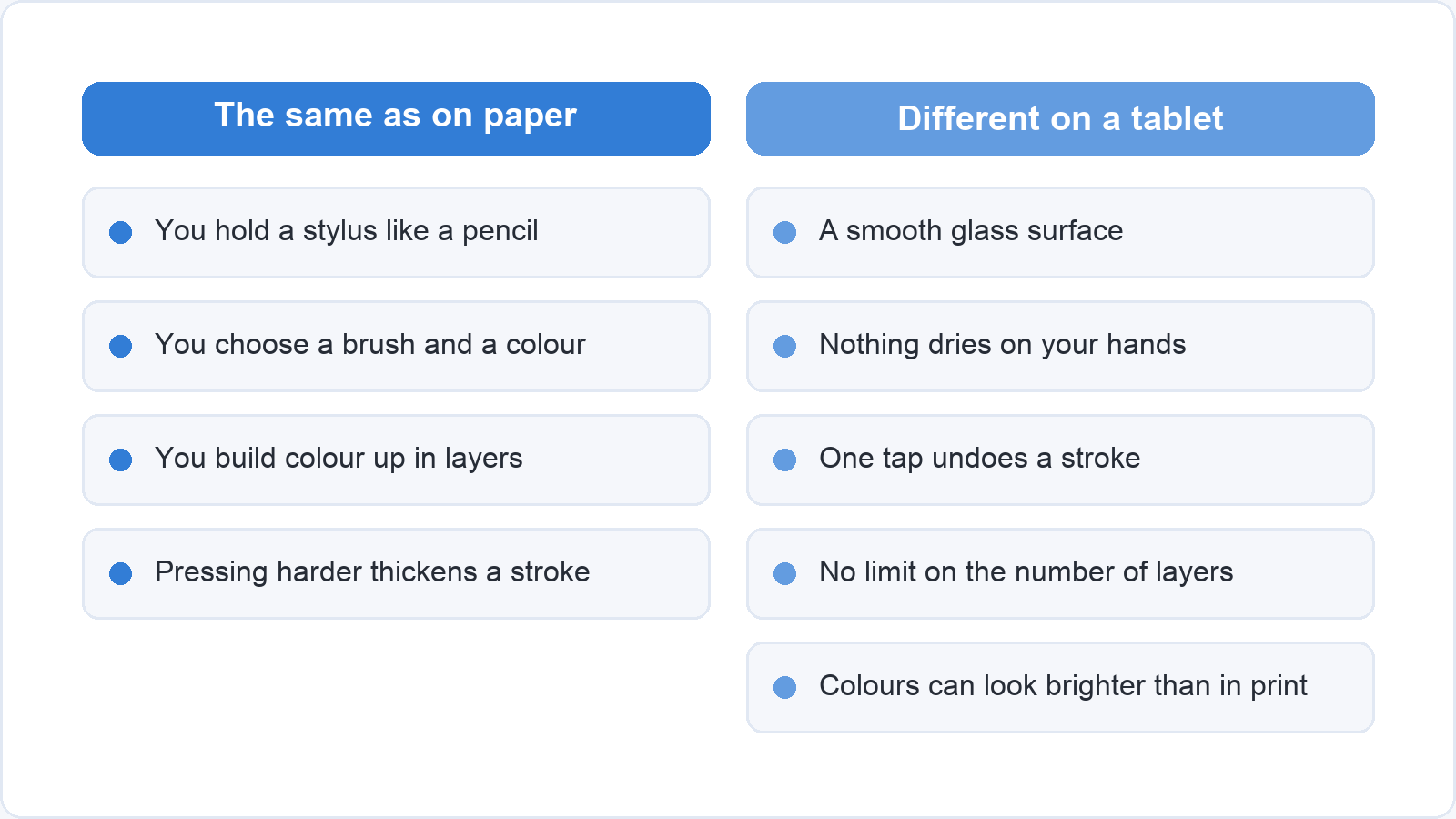
Some things a tablet does that paper cannot. You can undo a stroke with one tap, from the undo and redo buttons on the toolbar. You can try a colour on a separate layer and hide it again if it does not work. You can zoom in on an eye or a leaf and paint detail larger than you ever could on the page. Adobe says there is no limit to the number of layers in Fresco, so you are not rationing them.
What takes getting used to is mainly the feel of the stylus and the habit of undoing. First strokes on glass can feel slippery and too fast, and the fix is the same as with any new pencil: slow down and give your hand a few sessions. The undo button needs a little discipline too. On paper you keep a stroke and work with it; in Fresco it is tempting to undo every line until nothing feels finished. Setting yourself a rule, such as no undo for the first ten minutes, helps.
Watercolour and oil on a screen
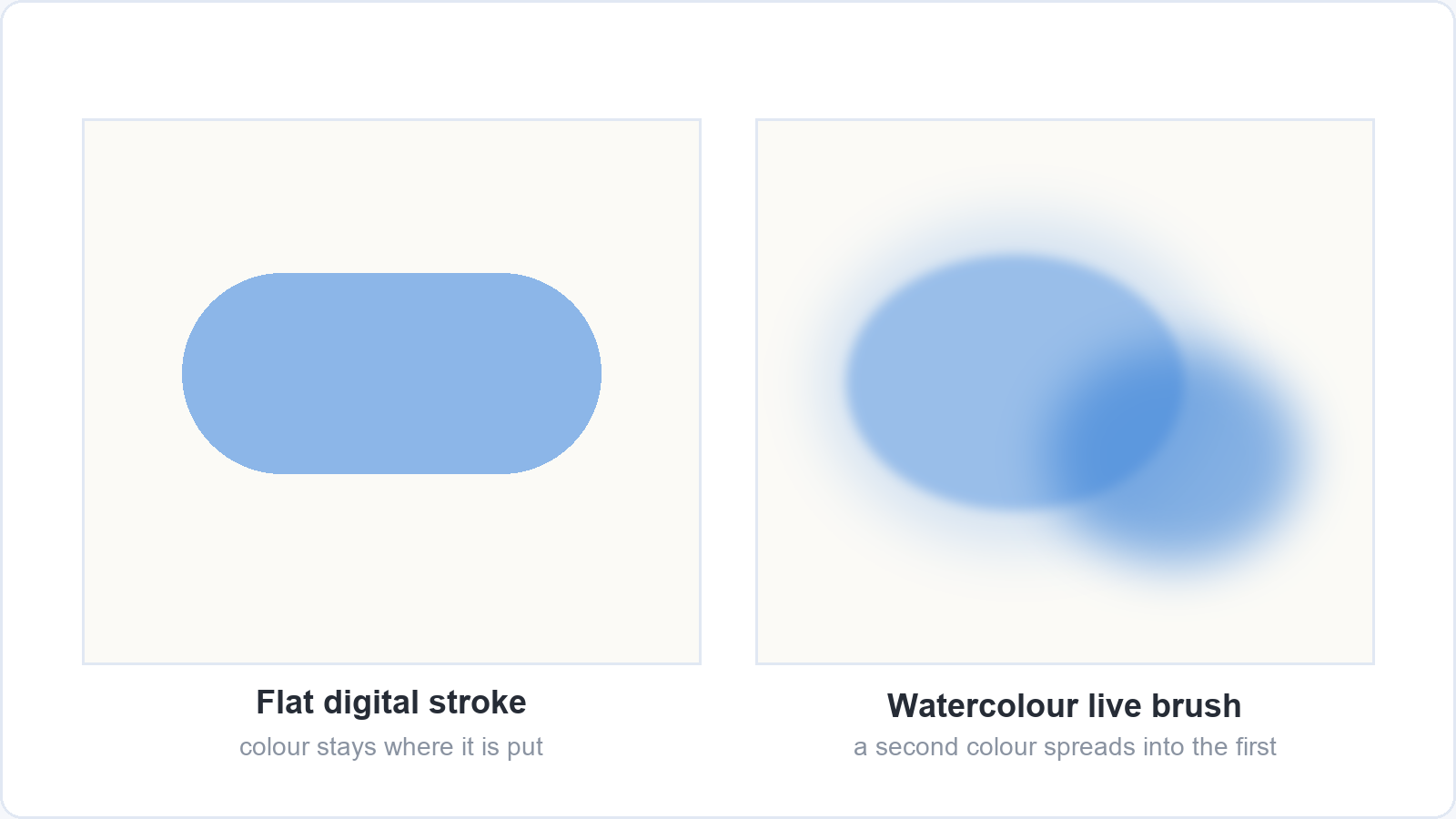
Fresco’s live brushes are built to behave like wet paint: a watercolour stroke spreads into the area around it, and oil colours mix into each other where they meet, instead of sitting on the canvas as flat colour.
Adobe describes the watercolour live brushes as brushes that bloom and spread, so you see the colour run into nearby areas of the canvas as you paint. The set includes Round Detail for lines from very thin to bold, Wash Soft for lighter, washed-out shades, Wash Flat for covering large areas quickly, and Wet Spatter for drops of colour in a background. Adobe also says that the watercolour stays wet, so you can go back into an area and keep working it in a way you cannot once real paint has dried.
The oil live brushes are meant to look thick and creamy, and mixing two colours gives swirls of colour where they meet. The set includes Flat for bold strokes and blending, Round for calligraphic strokes that change thickness with pressure, Filbert for covering larger areas with softer edges, Detail for small areas, Glaze for a translucent, stained-glass effect, and Chunky for dry-brush work. Adobe’s own short exercise for the oil brushes is a sensible one for a painter: sketch on one layer, paint on another, and work from dark tones to light.
A painter will notice the blooming first. Drop a second colour into a wet watercolour wash and it bleeds into the first, with soft edges where the two meet. Ordinary digital brushes put down flat colour that stays where you leave it, so this spreading is the main thing Fresco adds for a painter.
It still is not paint. Adobe describes the live brushes as a physics-driven simulation, and the way colour pools, granulates or backruns on real paper depends on paper, pigment and water in ways no app copies exactly. Treat the live brushes as their own medium that borrows from watercolour and oil, rather than a perfect replacement, and you will enjoy them more. One practical note for Windows users: Adobe says the watercolour live brushes are not supported on Surface Pro X and Surface Pro 9 devices.
What you need to get started
To start with Fresco you need a supported device, a stylus and an Adobe account. The app itself is free to download.
A device. Adobe’s system requirements list three kinds of device:
| Device | What Adobe requires |
|---|---|
| — | — |
| iPad | A supported iPad model with iPadOS 18 or later |
| iPhone | iPhone XS, XR or a later model, with iOS 17 or later |
| Windows | Windows 10 (version 21H2 or later) or Windows 11, 8 GB of RAM and an Intel, Nvidia or AMD graphics processor with DirectX 12.1 support; of the Windows devices with ARM processors, only certain Surface models |
Every version needs 5 GB of free space to install, and Adobe recommends 16 GB of free storage on iPhone and iPad. A larger screen is easier to paint on, so most painters choose an iPad or a Windows tablet over a phone. Check the full list of supported models on Adobe’s system requirements page before you buy anything, because it names specific iPad and Surface models.
A stylus. On iPad, Adobe lists the Apple Pencil (first and second generation) and the Apple Pencil Pro. On Windows, Adobe names pressure-sensitive pens such as the Surface Pen and Wacom pens. You can paint with a finger, but a pressure-sensitive stylus is what makes a stroke thicken and thin like a brush.
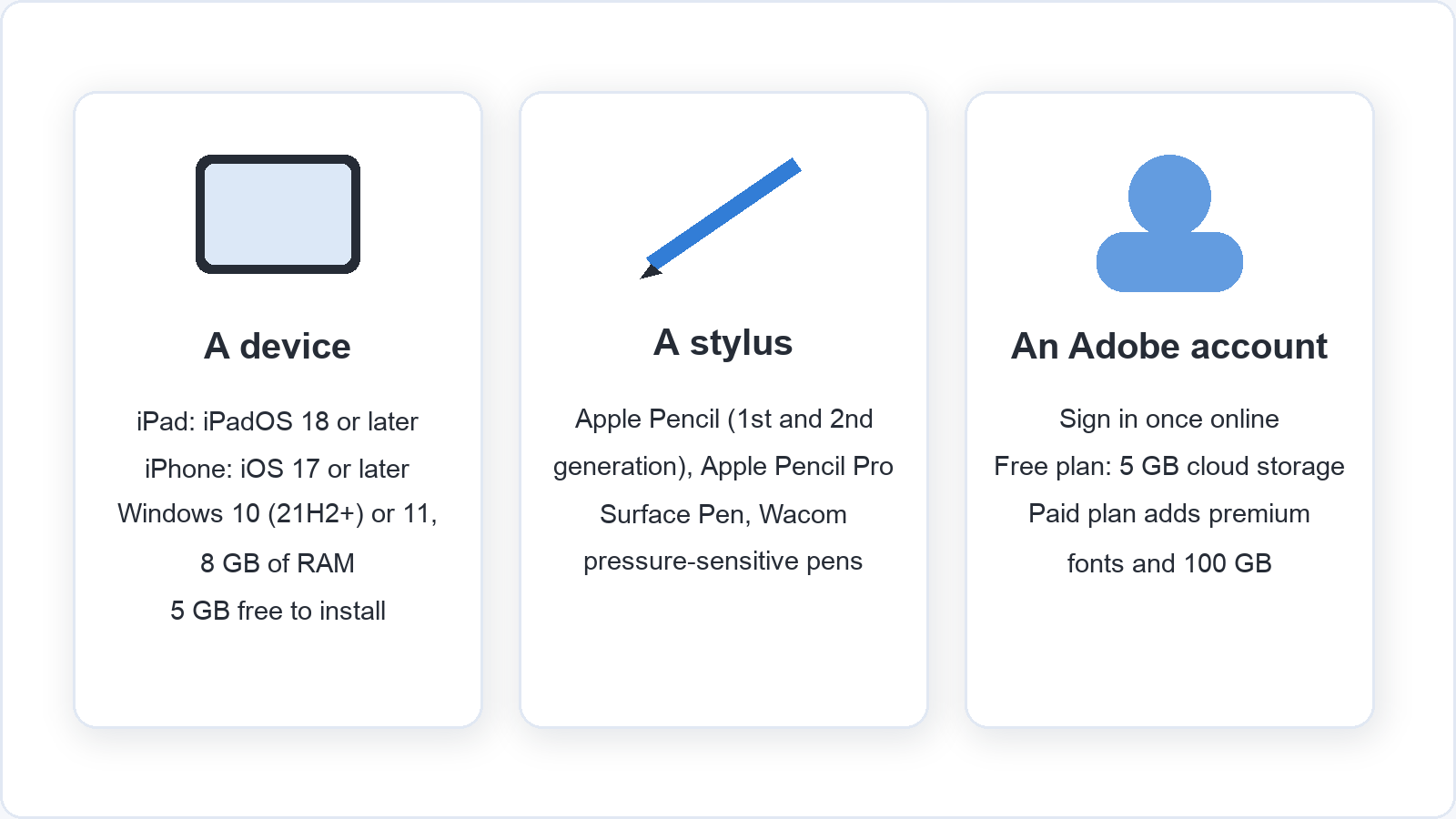
An Adobe account. Fresco needs an internet connection and an Adobe account to activate; you sign in the first time you open the app. After that you can paint offline: Adobe says your documents are saved on the device and synced to the cloud once you are back online.
Cost. Adobe states on its own pages that Fresco is free. The free plan includes 5 GB of cloud storage. A paid plan, which Adobe sells together with Photoshop on iPad, adds premium Adobe Fonts and 100 GB of storage. We have not quoted its price here; check the current price in the app or on Adobe’s site. Adobe lists only fonts and storage as what the paid plan adds, so for painting the free plan is enough.
A first exercise. Choose one object you would normally paint on paper, such as a pear, a cup or a lemon, and paint it in Fresco from life. Keeping the subject familiar means the only new thing is the tool, so you can tell what is the app and what is your painting.
Your first session: small steps that help
The easiest first session in Fresco uses one or two brushes, a few layers and one simple subject, and stops before you are tired of it.
Start with one or two brushes. Thousands of brushes is a lot to scroll through. Pick one pencil from the pixel brushes for sketching and one watercolour live brush, such as Wash Soft, for colour. Stay with those two for the whole session, the way you would with one pencil and one brush on a first day with a new paint set.
Use layers like sheets of tracing paper. Each layer is a transparent sheet over your painting. Put your sketch on one layer, your first wash on a second and the details on a third. If the details go wrong, you hide that one layer and start them again on a fresh one, and the wash underneath is untouched. When the painting is done, you hide the sketch layer and the pencil lines are gone, without any erasing.
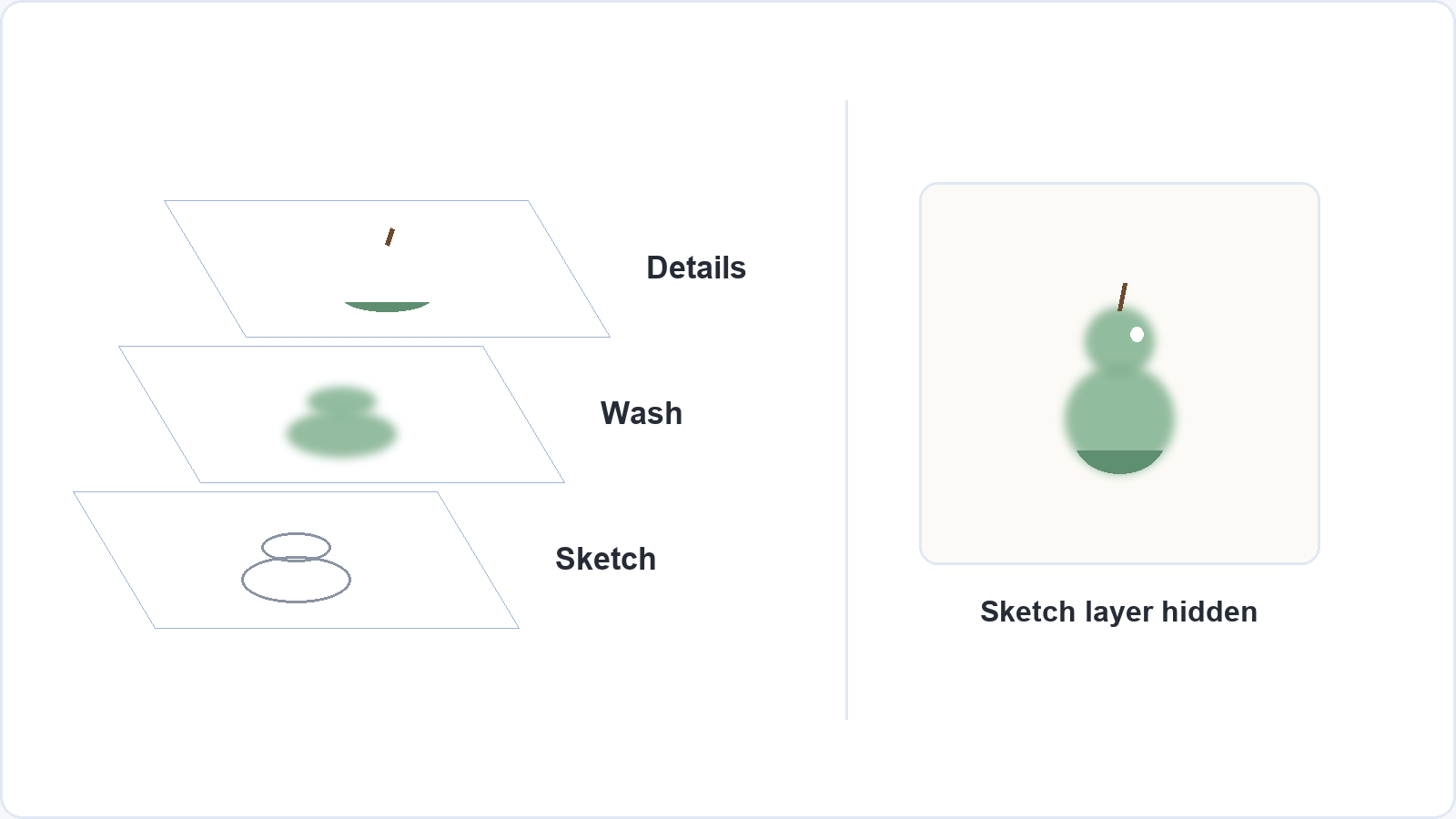
Paint the object from your first exercise. Sketch the pear on the first layer. Add a new layer and lay in the main colour with the watercolour brush, letting it bloom. Add a third layer for the shadow and the small highlights. Then hide the sketch layer and look at what you have.
Give it a few sessions. The first evening mostly teaches you where the buttons are. After a few more, the stylus usually feels less slippery and you start to make choices about the painting rather than about the app. That is a fairer moment to decide whether tablet painting is for you.
Paper and tablet can live side by side. You can sketch and test colours in Fresco on the train and paint the final piece on paper at home, or plan a composition on paper and try its colours on the tablet.
If you want to build the skills behind both, Soofos has a set of free online courses taught by real instructors, including painting and Photoshop, and you can start one today with a free account.