Canva is a design tool that runs in your browser. You pick a template, swap the text and photos for your own, and download the result as an image, a PDF or a video. That is most of what there is to it, which is why it has become the tool people reach for when they need a poster, a presentation or an Instagram post and have never opened design software in their life.
This walkthrough covers what Canva actually does, what you see when you open it, what it handles well, where it runs out of road, and whether the free version is enough for what you want to make.
What Canva is
Traditional design software gives you an empty canvas and a hundred tools, and assumes you already know what you are doing. Canva works the other way round. It gives you something that already looks finished and lets you change the parts you want to change.
Every design starts from a template: a poster, a presentation, an Instagram post, a CV, a restaurant menu, a certificate. You replace the placeholder text with your text and the placeholder photo with your photo, adjust the colours if you want to, and export. Nobody has to explain layers, bleed or kerning before you get something usable out of it.
It runs entirely in a browser, so there is nothing to install and your work saves as you go. There are apps for phone and tablet as well, and a design you start on a laptop carries on where you left it.
Your first design
When you open Canva you get a search bar and a grid of suggestions. Type what you are making, something like “Instagram post”, “CV” or “certificate”, and Canva shows you templates in the right dimensions for it. Pick the one closest to what you have in mind. You are not locked into it, and changing your mind later costs you nothing.
From there the work is mostly clicking and replacing. Click a piece of text and type over it. Drag one of your own photos onto a placeholder image and it drops into the frame. Click a shape to change its colour. There is no save button to remember, and there is an undo button for everything.
Most people have a finished first design within about fifteen minutes, and it looks fine. Not brilliant, but fine, which for a one-off event poster is usually all it needs to be.
The four parts of the editor
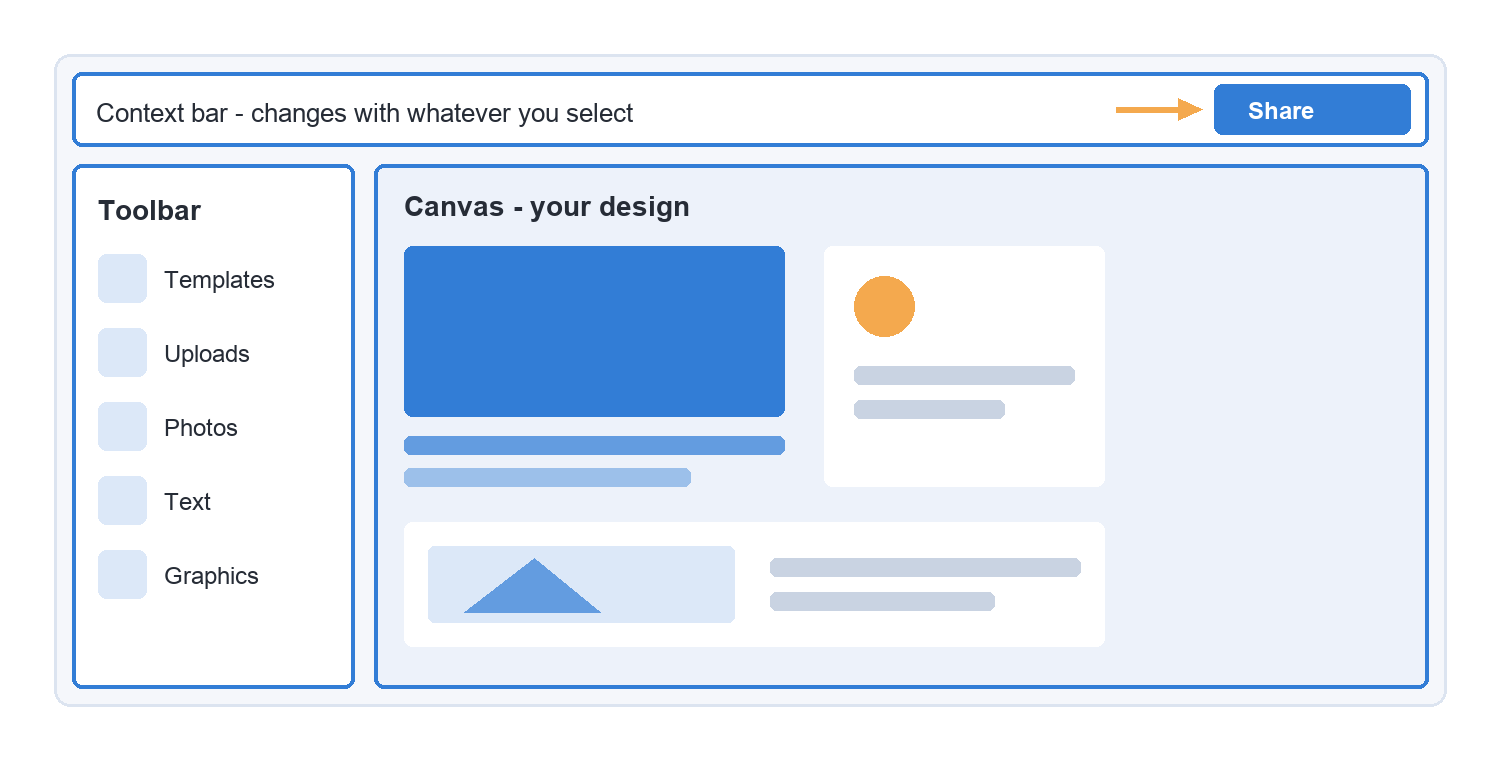
The four most important elements on the screen are:
The canvas in the middle, which is your design. Anything on it becomes editable the moment you click it.
The toolbar down the left, where new things come from. Templates, uploads of your own photos, a stock photo library, text, and a large collection of graphics and icons.
The context bar along the top, which changes depending on what you have selected. Click text and it shows fonts, sizes and colours. Click a photo and it shows cropping and filters.
The Share button, top right, which is how the file gets out. Download gives you a PNG, a JPG, a PDF or an MP4. You can also generate a link and send it to someone so they can view or edit the design in their own browser.
There is a lot more underneath those four, but you can make a genuinely good design without ever going looking for it.
What Canva does well
The obvious strength is speed. A social post that would take an hour in professional software takes about five minutes in Canva, and for something that gets made weekly and looked at once, that is the right trade to make.
It is also unusually good at keeping a small team consistent. You save your fonts and colours once, and everyone who makes something starts from the same palette. For a business where four different people handle the social media, that alone justifies the setup time.
Collaboration works the way a shared document does. You send someone a link, they open it in their browser, and you can both edit the same design. No files going back and forth by email, no version called final-v3-REAL.
And the built-in stock library removes the most tedious part of design for people who do not do it for a living, which is finding a photo you are actually allowed to use. Millions of images, illustrations and videos sit inside the editor, licensed and ready to drop in.
Where Canva runs out of road
The limitation people notice first is that Canva designs start to look like Canva designs. Millions of users work from the same templates and the same handful of popular fonts, and once you have spent a while in the tool you begin recognising them in the wild. Your audience will not consciously think “that is a Canva template”, but they will register that it looks familiar.
Precise print work is the second limitation. Canva will give you a print-ready PDF and for a flyer or a business card that is perfectly adequate. When a printer starts asking about colour profiles, spot colours or exact bleed measurements, you will find the edges of what Canva can do fairly quickly.
Complex projects also get slow, because it is a browser application. A sixty-slide presentation with video on every slide will remind you of that.
The last one is worth knowing before you commit: your work lives inside Canva. You can export finished files and keep them forever, but you cannot take the editable design somewhere else, and if you stop paying you keep your exports rather than your ability to keep editing anything that used premium content.
Every tool has a shape, and this is Canva’s. Knowing where it stops is more useful than pretending it does everything.
Free or paid
Canva has four tiers: Free, Pro, Business and Enterprise. For most people starting out, Free is enough, and it is worth being clear about why.
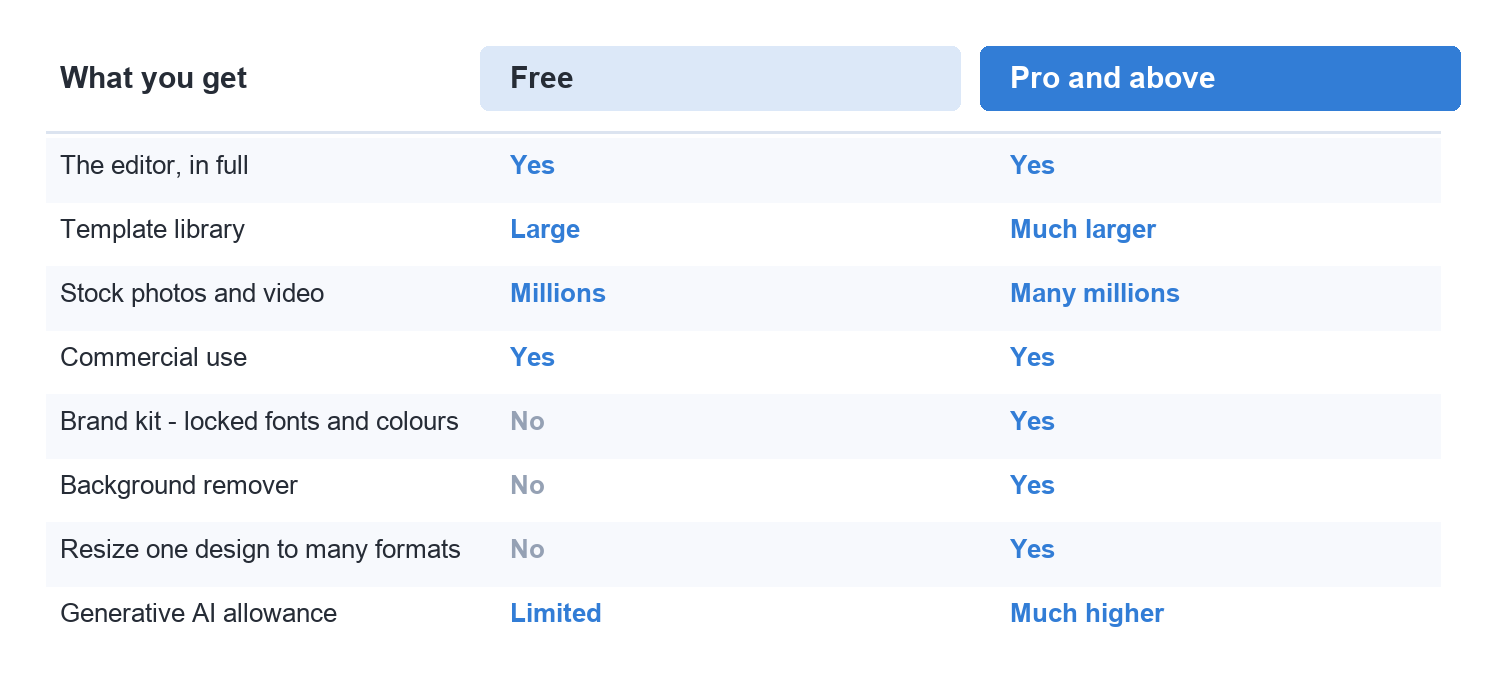
The free plan includes the full editor, a large template library, a large stock library and cloud storage. You can build a real design, export it at proper quality and use it commercially. Nothing structural is switched off to push you into paying.
The paid tiers mainly add three things. You get the premium half of the template and asset library, which is considerably larger. You get brand tools that lock your fonts and colours in place so nobody on your team can drift off-palette. And you get a much higher allowance on the AI features. There are also two smaller additions that save more time than they sound like they will: a background remover, and a resize button that turns one design into eight different formats in a click.
Upgrading makes sense once you are making things regularly and the brand tools stop being a nice extra. It rarely makes sense on your first day. If you would rather spend nothing at all while you work out whether design is something you enjoy, Soofos has free courses you can start with. Canva’s plans and prices vary by country and change regularly, so check their pricing page rather than trusting a number in a blog post.
The AI tools
Canva has spent the last few years building generative tools into the editor. You can have it write copy, generate an image from a description, remove an object from a photo, or turn a rough brief into a first draft of a design.
They work, and they are fast. They also produce something that looks a lot like everyone else’s output, because it is the same model responding to the same kind of prompt. The useful way to work with them is to get to a first draft quickly and then do the part that makes it specific to you: your photo instead of the generated one, your wording instead of the generated wording, your colours instead of the defaults.
Using Canva designs for your business
You can use anything you make on the free plan commercially. Your own marketing, a client’s marketing, a product you sell. The licence covers the templates and the stock content inside them, with no limit on how many copies you print or publish.
The restriction is on reselling the ingredients rather than the design. Putting a stock photo into a poster and selling the poster is fine. Taking that same photo back out and selling it as a stock photo is not. Selling designs as templates sits in between: it is allowed when the design uses free content, and not allowed when it uses premium content.
Logos have their own rule, and it is the one that catches people out. You can design a logo in Canva. You cannot register it as a trademark if it contains Canva’s stock elements, because you do not own those exclusively. Fonts are the exception. If a logo is meant to carry a business for the next ten years, that is better to know at the start than three years in.
Canva or Photoshop
These two get compared constantly and they are not really competitors.
Photoshop is a pixel editor. It exists to manipulate images: retouching, compositing, masking, the kind of work where you care about individual pixels. Canva is a layout tool. It exists to arrange things that already exist into something finished.
Which one you want depends on the job in front of you. Putting text over a photo for a social post is a Canva job. Removing someone from a group photo convincingly is a Photoshop job. In practice a lot of people who think they need Photoshop need layout, and the ones who genuinely need Photoshop tend to already know it.
Learning the part Canva cannot do for you
Most people reach the same plateau in Canva. They can make something that works, but it still looks like a template with their words in it, and they cannot quite explain why the designs they admire look better than theirs.
That gap is not a Canva problem. It is design: hierarchy, spacing, knowing when to stop adding fonts, choosing three colours and sticking to them. You can learn the principles in an afternoon and then spend years getting better at applying them, and all of it transfers to whatever tool you use next.
If you want to close that gap, our graphic design courses start exactly there, with the thinking behind a good design, taught by people who do this work for a living.