Most free webinar software is a meeting app with a clock on it. If you need to talk to up to 100 people for less than an hour, Google Meet’s free plan gives you 60 minutes and Zoom and Webex give you 40. If you want a proper webinar room with Q&A and polls, Zoho Webinar’s free plan holds 20 attendees for 60 minutes. If your audience has no fixed size, a free live stream on YouTube, with StreamYard if you want guests on screen, takes the cap away and with it most of the interaction.
The sections below cover what each free plan allows, which tools the comparison lists still call free that now charge, and how to fit a session into a 40 or 60-minute limit. Every limit below was read on the vendor’s own pricing or help page on 7 October 2026. Where a vendor publishes a price, it is quoted in that vendor’s currency, which is US dollars for most of them and euros for Livestorm as its page displayed it to us; some vendors show a different currency depending on where you visit from.
What does free webinar software actually get you?
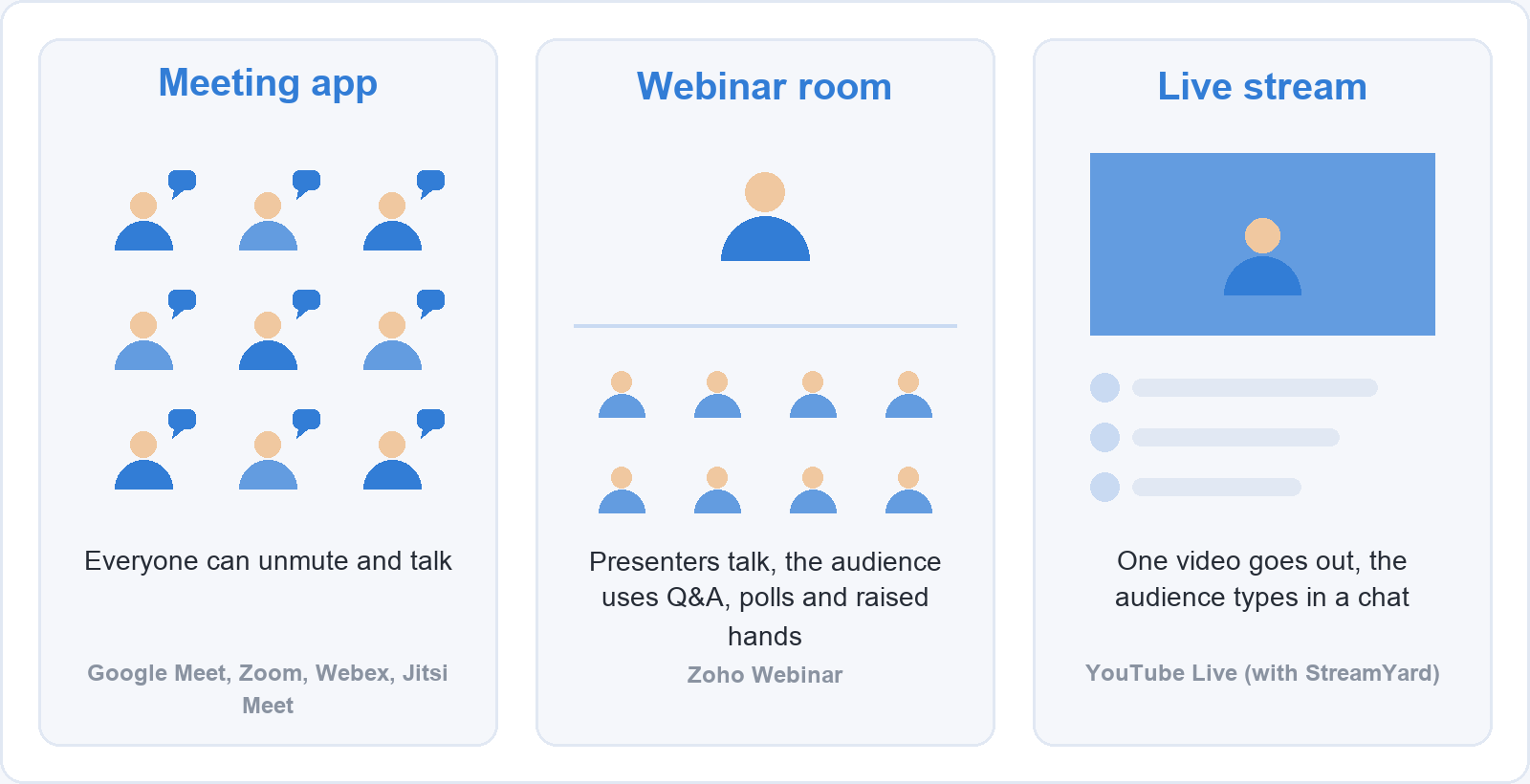
Free webinar software comes in three kinds, and the kind decides more than the brand does. A meeting app (Google Meet, Zoom, Webex, Jitsi Meet) puts everyone in the same room: anyone can unmute, turn their camera on and talk. A webinar room (Zoho Webinar) separates presenters from attendees, so the audience watches and takes part through Q&A, polls and raised hands. A live stream (YouTube Live, with StreamYard as an optional studio in front of it) sends one video out to anyone with the link, and the audience answers in a chat.
The distinction matters most for a first webinar with strangers. In a meeting app, 80 people who have never met can all unmute at once, so you spend the first minutes muting people and the host controls carry the session. In a webinar room, attendees cannot interrupt unless you let them. In a live stream, nobody can, and the price of that is a delay between your sentence and their typed reply.
Which free plans are there, and what are their limits?
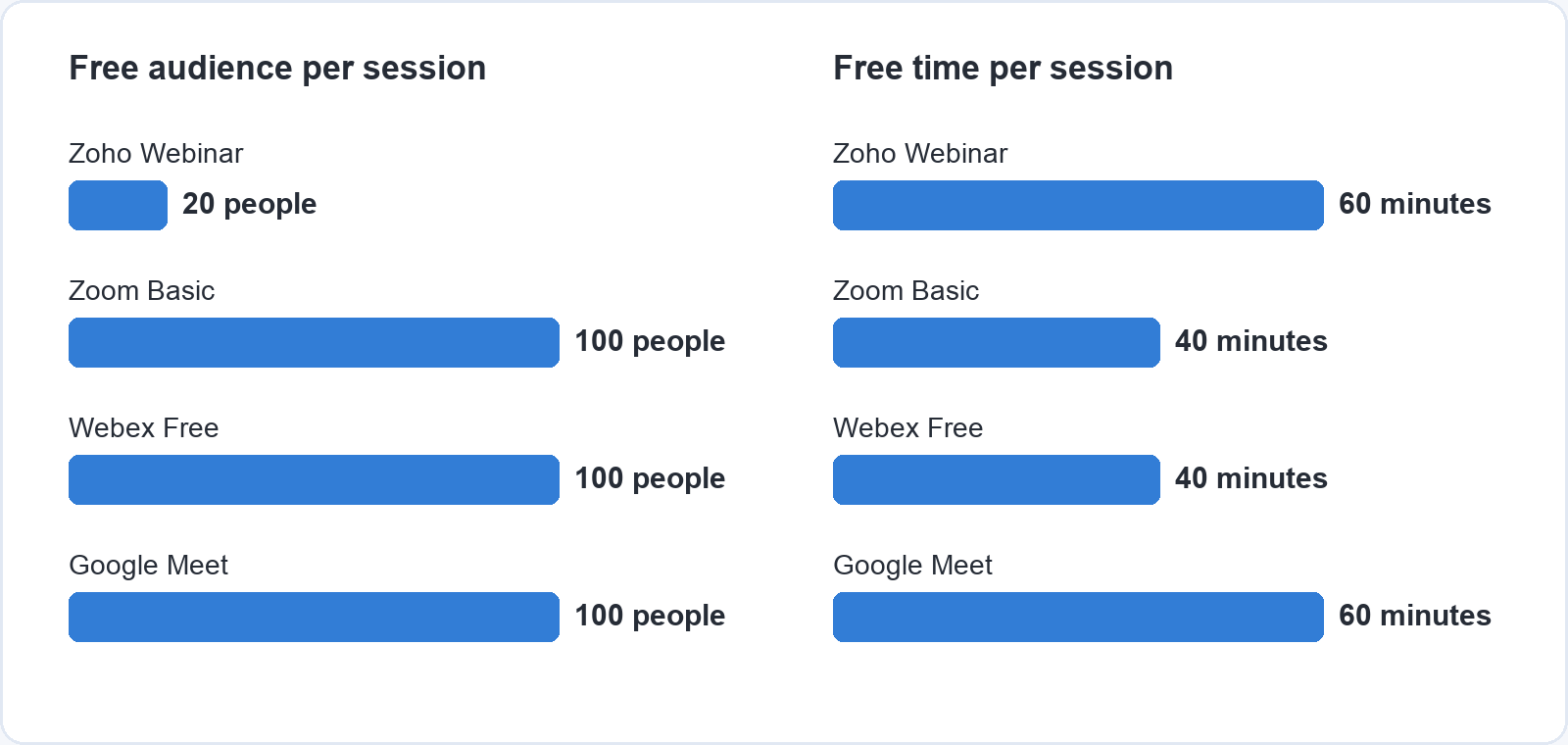
Seven tools have a free plan you can run a webinar on without a trial clock. The table gives the limits each vendor states. “Not stated” means the vendor’s page gives no number, which is not the same as having no limit. Microsoft Teams also has a free version, but Microsoft’s pages did not load for us on the day we checked, so its limits are not in this table.
| Tool | Kind | Free audience | Free time per session | Worth knowing |
|---|---|---|---|---|
| Google Meet | Meeting app | 100 participants | 60 minutes (1:1 calls have no limit) | Recording is a paid feature |
| Zoom Workplace Basic | Meeting app | 100 participants | 40 minutes | Automated captions, breakout rooms, waiting room |
| Webex Free | Meeting app | 100 attendees | 40 minutes | Local recording included |
| Zoho Webinar Free | Webinar room | 20 attendees | 60 minutes | Polls, Q&A, raise hands |
| Jitsi Meet | Meeting app | Not stated | Not stated | Open source, no account to join |
| YouTube Live | Live stream | Not stated | Not stated | Verified channel, host aged 16 or over |
| StreamYard Free | Streaming studio | 6 people on screen | Not stated | StreamYard logo on the stream, 2 hours of local recording a month |
Google Meet: the longest free session for up to 100 people
Anyone with a Google Account can create a meeting, invite up to 100 participants and run it for up to 60 minutes without paying, according to Google’s own Meet page. One-to-one calls and calls on mobile have no time limit. Attendees join from a browser with no download, which matters when your audience is a group of strangers on locked-down work laptops. Recording is not part of the free plan: Google lists “record meetings” among the features of its paid Workspace plans, so if you want a replay, record your own screen alongside the call.
Zoom Workplace Basic: 40 minutes, with captions and a waiting room
Zoom’s free Basic plan allows unlimited meetings of up to 40 minutes each with up to 100 participants. For a webinar, the useful items on its feature list are the waiting room, host controls, breakout rooms and automated captions, which help anyone who joins with the sound off or listens in a second language. Zoom Webinars, the product with a separate attendee and panellist view, is sold separately from $89 a month billed monthly and has no free plan. The paid Pro plan is listed at $16.99 per user per month billed monthly, or $14.16 billed annually.
Webex Free: 40 minutes, with recording you keep
Webex Free gives unlimited meetings of up to 40 minutes with up to 100 attendees, according to Webex’s pricing page. Its free plan includes local recording, which neither Google Meet’s nor Zoho Webinar’s free plan has, plus screen sharing with annotation and noise cancellation. If a replay for the people who could not come is part of your plan, Webex is the meeting app that gives you one without paying.
Zoho Webinar Free: the one free plan built as a webinar room
Zoho Webinar’s free plan allows webinars of up to 60 minutes for 20 attendees, with screen sharing, polls, Q&A and raised hands. It is the only free plan in this list built as a webinar room, where presenters and audience are separate and attendees ask questions in a queue you answer in order, instead of unmuting over each other. The trade-off is size: 20 attendees suits a client workshop or a pilot for a course, not an open launch. Zoho lists webinar recording and an embeddable registration form under its paid Standard plan, priced per organiser.
Jitsi Meet: open source and no account to join
Jitsi Meet is “100% open source” and, in its makers’ words, free to use “all day, every day” with no account needed to join. On the public service at meet.jit.si, the first person into a room is asked either to sign in with a Google, Facebook or GitHub account or to wait for a moderator, which stops strangers taking over an empty room. Jitsi does not publish a participant limit for meet.jit.si, so test it with a group close to your expected size before you rely on it. Because the software is open source, an organisation with its own server can host it, which is the option to look at if your data cannot leave your own systems.
YouTube Live: an audience of any size, talking back through chat
Streaming on YouTube costs nothing. To turn it on, YouTube’s help centre says you need a verified channel, no live streaming restrictions in the past 90 days, and to be at least 16. With a webcam, you go live from the YouTube site itself: Create, Go Live, Webcam, then a title, description and privacy setting. Set the stream to unlisted and only people with the link find it, which makes it a workable webinar for an audience you invited. The stream stays on your channel afterwards as a video, which is the most straightforward way to get a free recording of a session.
StreamYard Free: guests on screen, streamed out to YouTube
StreamYard is a browser studio that sits between your guests and the platform you stream to. Its free plan allows six people on screen, adds the StreamYard logo to the stream and includes two hours of local recording a month. That makes it a free way to run a panel or an interview on YouTube Live, with each guest joining from a browser link. The paid Core plan removes the logo and lists unlimited streaming and recording, at $44.99 a month billed monthly or $35.99 billed yearly.
Which tools do the lists still call free that are not?
Livestorm is the clearest case. Some of the pages that rank for “free webinar software” still describe a Livestorm free plan with a cap of a few participants, a handful of registrants and 20-minute sessions. Livestorm’s own pricing page now shows no free plan: Pro is charged at €2.50 per attendee, with “1 attendee credit is used for each unique participant, per session, over a 12-month period”, and the free option is a trial at sign-up.
Two other names are worth checking before you plan around them. Zoom Webinars is not the same product as Zoom’s free Basic plan: its pricing page starts at $89 a month and shows no free tier. WebinarNinja, which appears in many lists, offers a 14-day trial on its own site, not a free plan. A trial is fine for a single session if you know the date, and a poor base for a series.
How do you choose a free webinar tool?
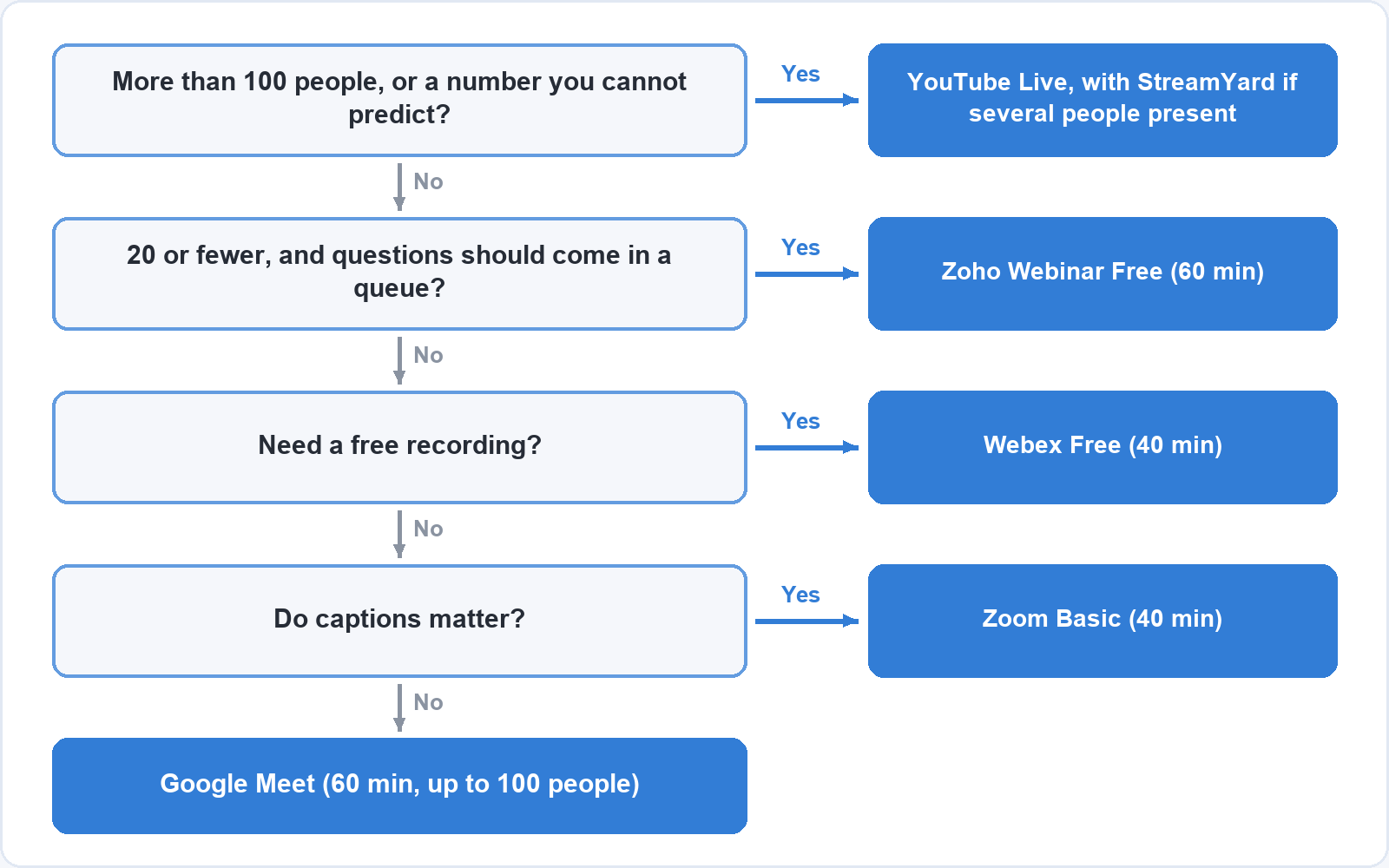
Start with the number of people, then how the audience should take part, then whether you need a recording. More than 100 people, or a number you cannot predict: YouTube Live, with StreamYard if more than one person presents. Up to 20 attendees whose questions should come in a queue: Zoho Webinar. Up to 100 people and you need a free recording: Webex, within 40 minutes. Up to 100 people and captions matter: Zoom, also within 40 minutes. For everything else up to 100 people, Google Meet, which gives you the longest free group session at 60 minutes.
Two more questions settle the close calls. If your audience works inside a company that blocks some apps, choose the tool they can join from a browser, and send a test link a few days before. If the session is about the screen you are sharing, a meeting app works better than a stream, because people can ask “can you scroll back up?” while it still helps.
How do you fit a session into a 40 or 60-minute limit?
Plan the session to end five minutes before the limit, and write the plan down in minutes. On a 40-minute cap, five minutes for people arriving and five minutes of buffer at the end leave 30 minutes for content and questions. The example plan below is ours, not a vendor’s: it leaves the last five minutes empty so the call is never cut off mid-answer.
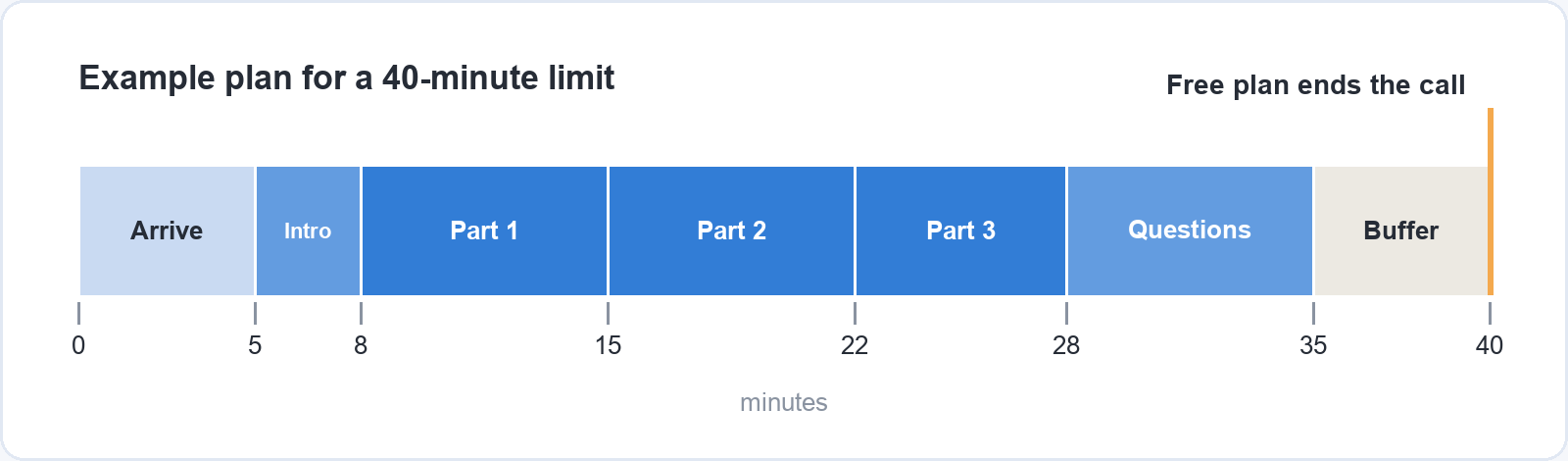
Three habits make the plan hold. Start on time and say once, at the start, when the session ends, so latecomers do not hold up the room. Take questions in one block rather than after every slide, because a meeting app gives you no way to pause the clock. If the topic needs longer than the cap, split it into two sessions a week apart, rather than ending the call at the limit and sending everyone a new link halfway through.
Most of the work of a good webinar happens before anyone joins. If you will share your screen, prepare the windows in advance and turn notifications off. The same rules that apply to a recorded tutorial, one task per segment and showing the result before the steps, apply live; our guide on how to make an instructional video covers them step by step.
What else do you need besides the software?
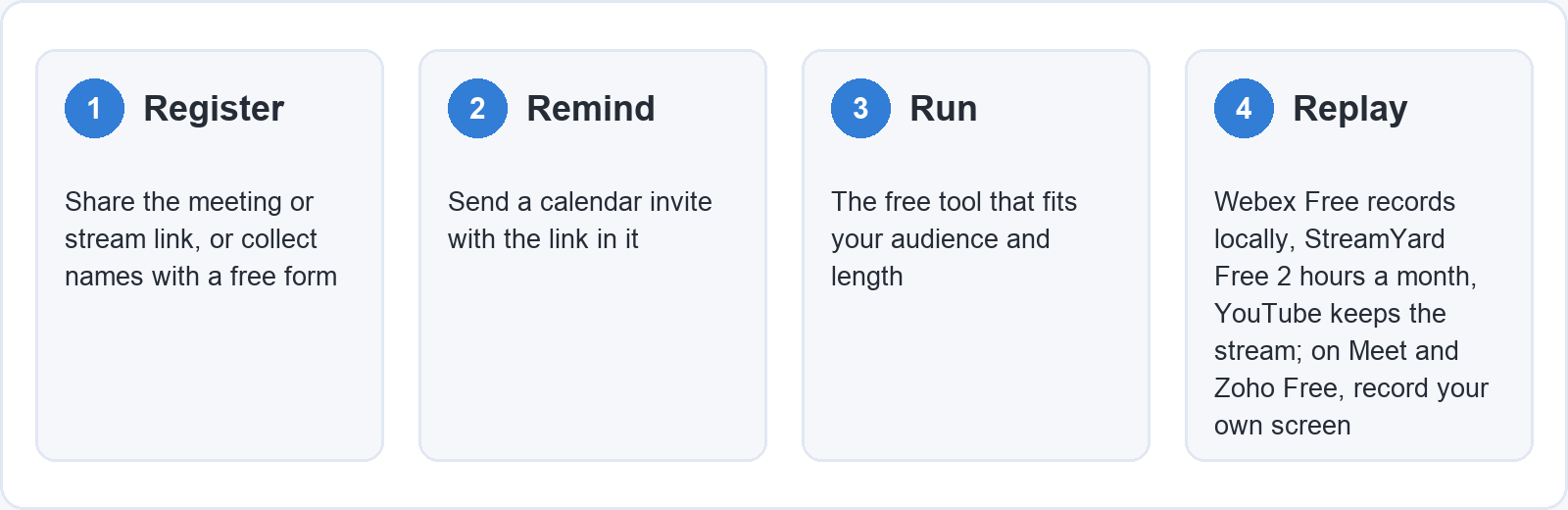
A free webinar needs three things the free plans handle unevenly: a way to register, a way to remind people, and a replay. Registration on the free plans is mostly a link: you share the meeting or stream URL, or you collect names with any free form tool and send the link by email. A calendar invite carrying the link works as the reminder, because most calendars notify people before the start. For the replay, Webex Free records locally, StreamYard Free records two hours a month, and YouTube keeps the stream on your channel; with Google Meet and Zoho Webinar on their free plans, record your own screen.
If the same questions come up at every session, the webinar is telling you what a course about it would contain. A recorded course answers those questions once, at the learner’s pace, and our guide to creating a free online course walks through the platforms that cost nothing to start on.
Questions people ask about free webinar software
Is Zoom free for webinars?
Zoom’s free Basic plan runs meetings of up to 40 minutes for up to 100 participants, which works for a small webinar. Zoom Webinars, the product with a separate attendee view, has no free plan.
Can I host a webinar on Google Meet for free?
Yes, for up to 100 participants and 60 minutes per meeting with a free Google Account. Recording is not included on the free plan.
Is there free webinar software with no time limit?
None of YouTube Live, Jitsi Meet or StreamYard’s free plan publishes a per-session time limit on the pages we read, so those are the places to look. Google Meet, Zoom and Webex all stop group sessions at 40 or 60 minutes.
Which free webinar tool is best for teachers?
For a class of up to 20 that should ask questions without talking over each other, Zoho Webinar’s free plan. For a larger group that needs to talk, Google Meet, which gives the longest free group session of the meeting apps (60 minutes) and lets students join from a browser.
Can I record a free webinar?
Yes, on Webex Free (local recording), StreamYard Free (two hours a month) and YouTube Live (the stream stays on your channel). On the free plans of Google Meet and Zoho Webinar you need your own screen recorder.
Turn the session into a course
A webinar reaches the people who can make it at that hour, and a course reaches everyone else. If you already teach something live, the slides, the questions people ask and the examples that work are most of a course outline. On Soofos, publishing a course is free, you keep 50% of the revenue when a learner finds it through the catalogue and up to 96% when you bring the learner yourself, and the course stays yours to offer elsewhere. See how it works on teach on Soofos.